
Starting Your KuCoin Thailand Journey (Foreigners)
Step 1: Sign Up for a KuCoin Thailand Account
Step 1: Sign Up for a KuCoin Thailand Account
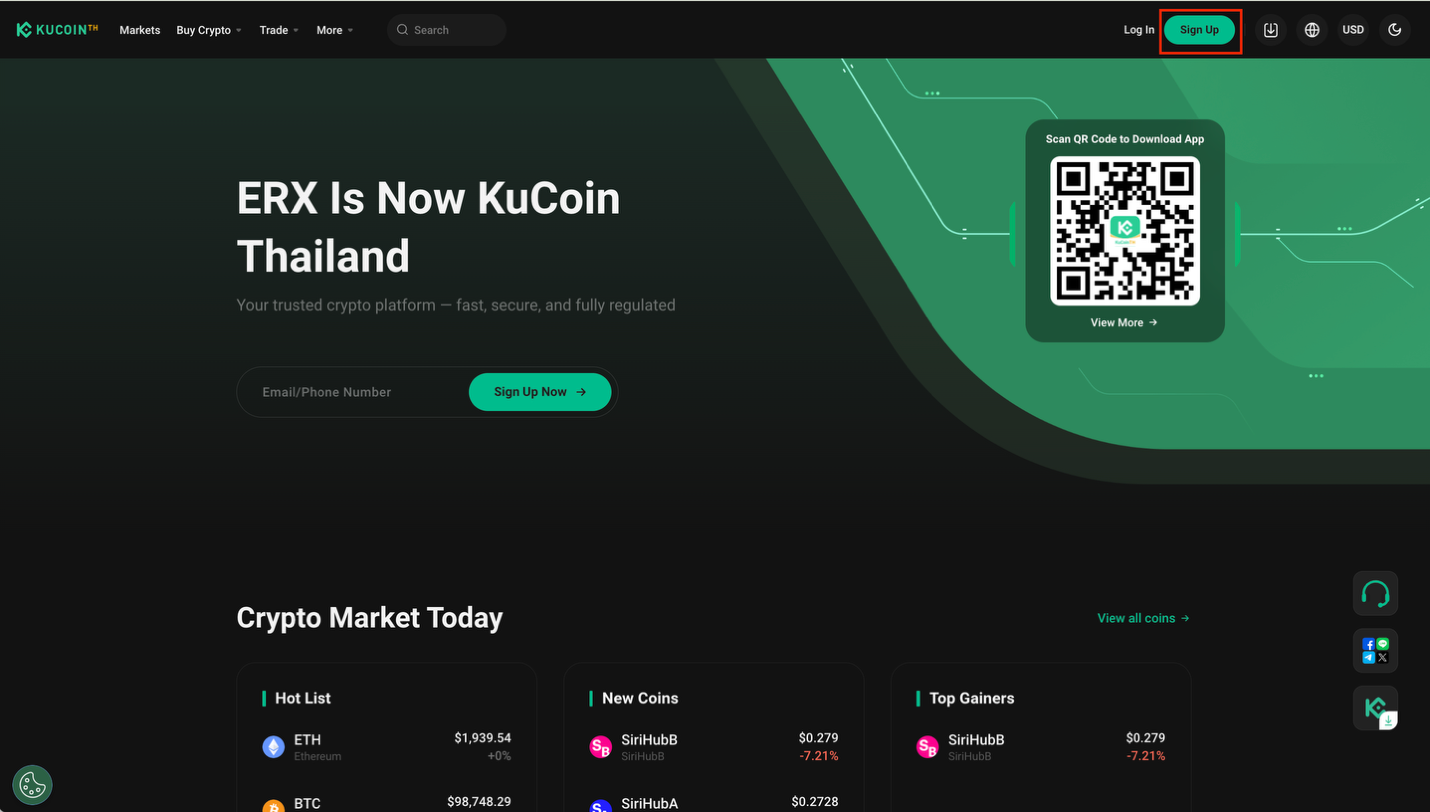
Visit the official KuCoin Thailand site or Scan QR code for download KuCoin TH application and select “Sign Up” in the top right. You can sign up with either an email or a phone number.
1. Sign Up with Email/Phone Number (Web/App)
From the KuCoin Thailand homepage on either the web or app, enter the email/phone number you wish to sign up with. Check the box to agree to the Terms of Use and Privacy Policy, then select Create Account
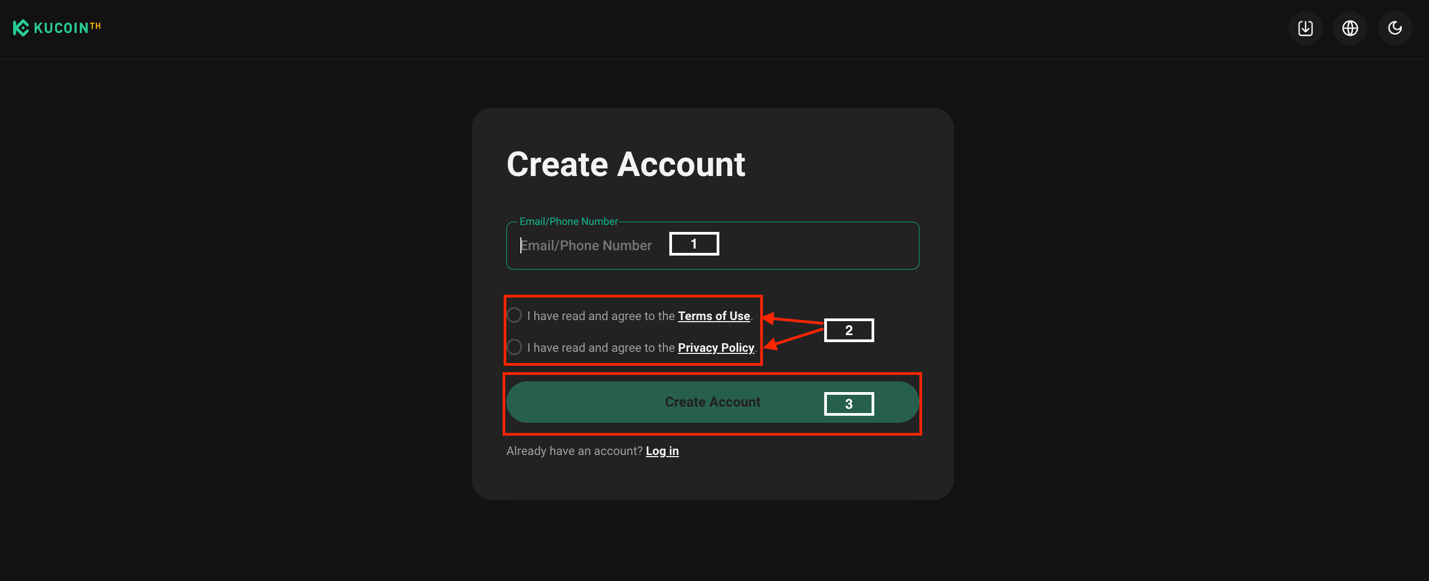
Note: If your email or phone number is already in use with another account, it cannot be used again.
2. Click “I am human”

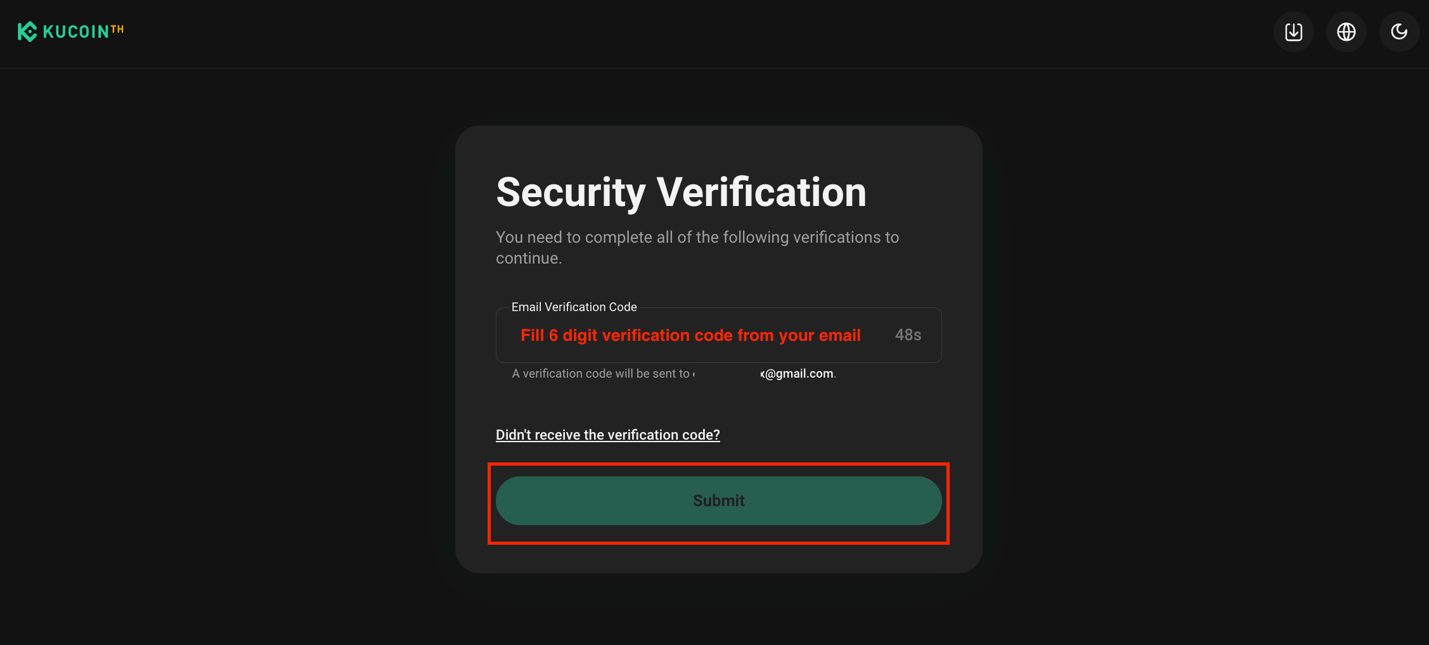
3. After verification, you will receive a 6-digit verification code in your email, set up your login password, and then select Confirm to finish.
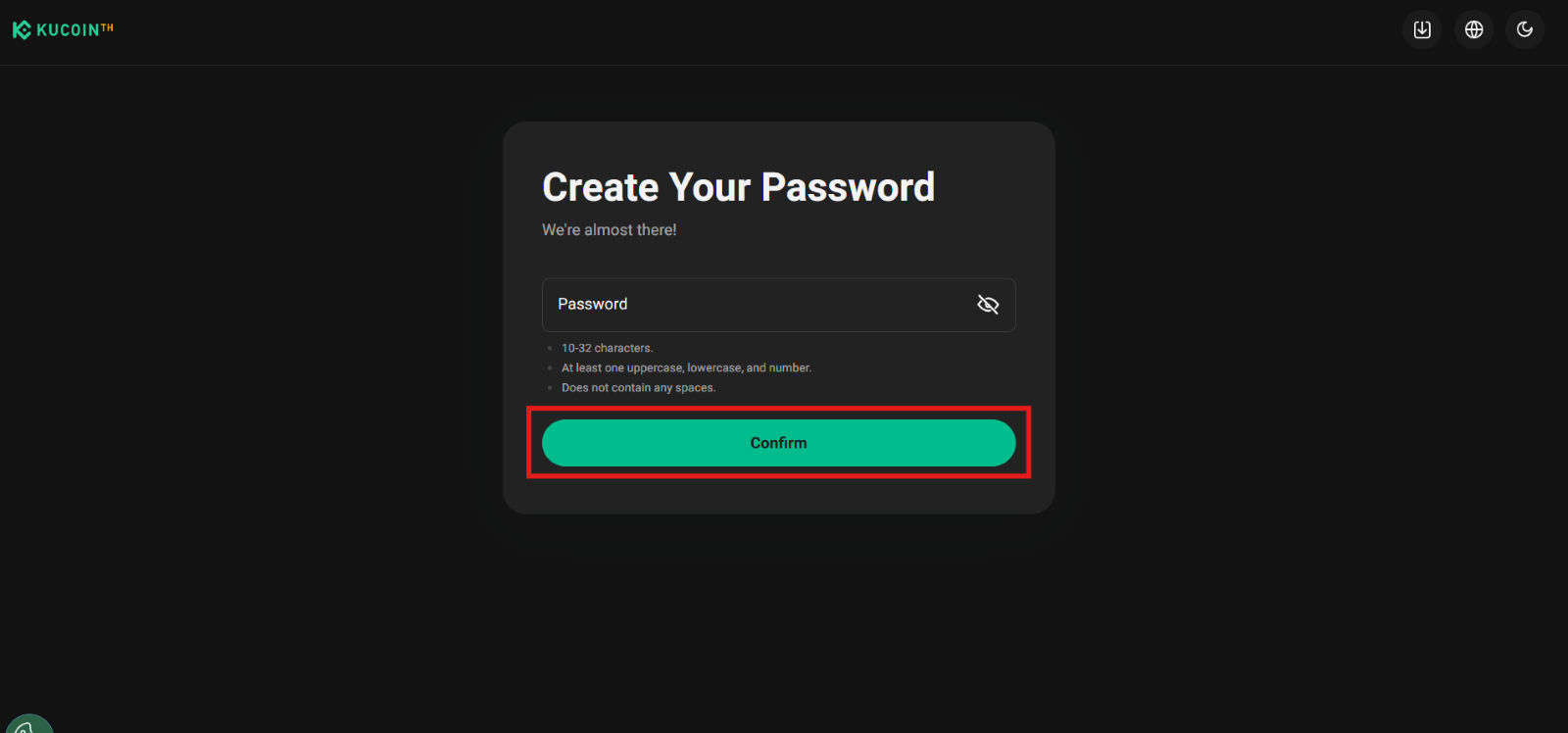
*The password must be 10-32 characters length, contain at least 1 uppercase letter, at least 1 lowercase letter, and at least 1 number
4. Once you’ve signed up for an account, your account has been successfully registered with KuCoin Thailand’s.
Step 2: [Set Up Security] Linking Your Phone
1.To better protect your account, link your phone number as a verification method. Having multiple security measures lowers the chances of a security breach.
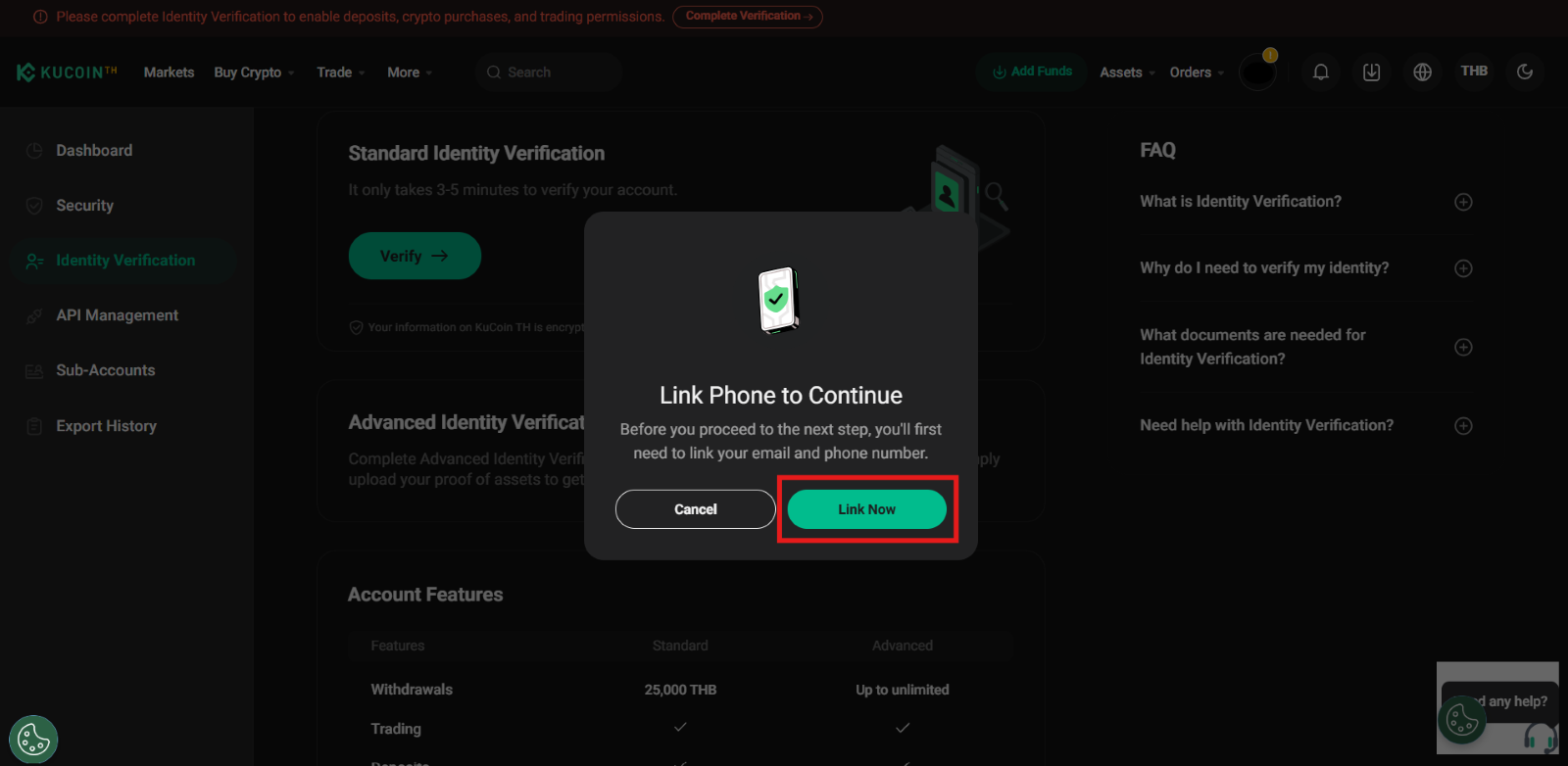
2.Click “Send” to send a verification code to your registered email address. Enter the verification code in the email verification code field, then click “Continue”.
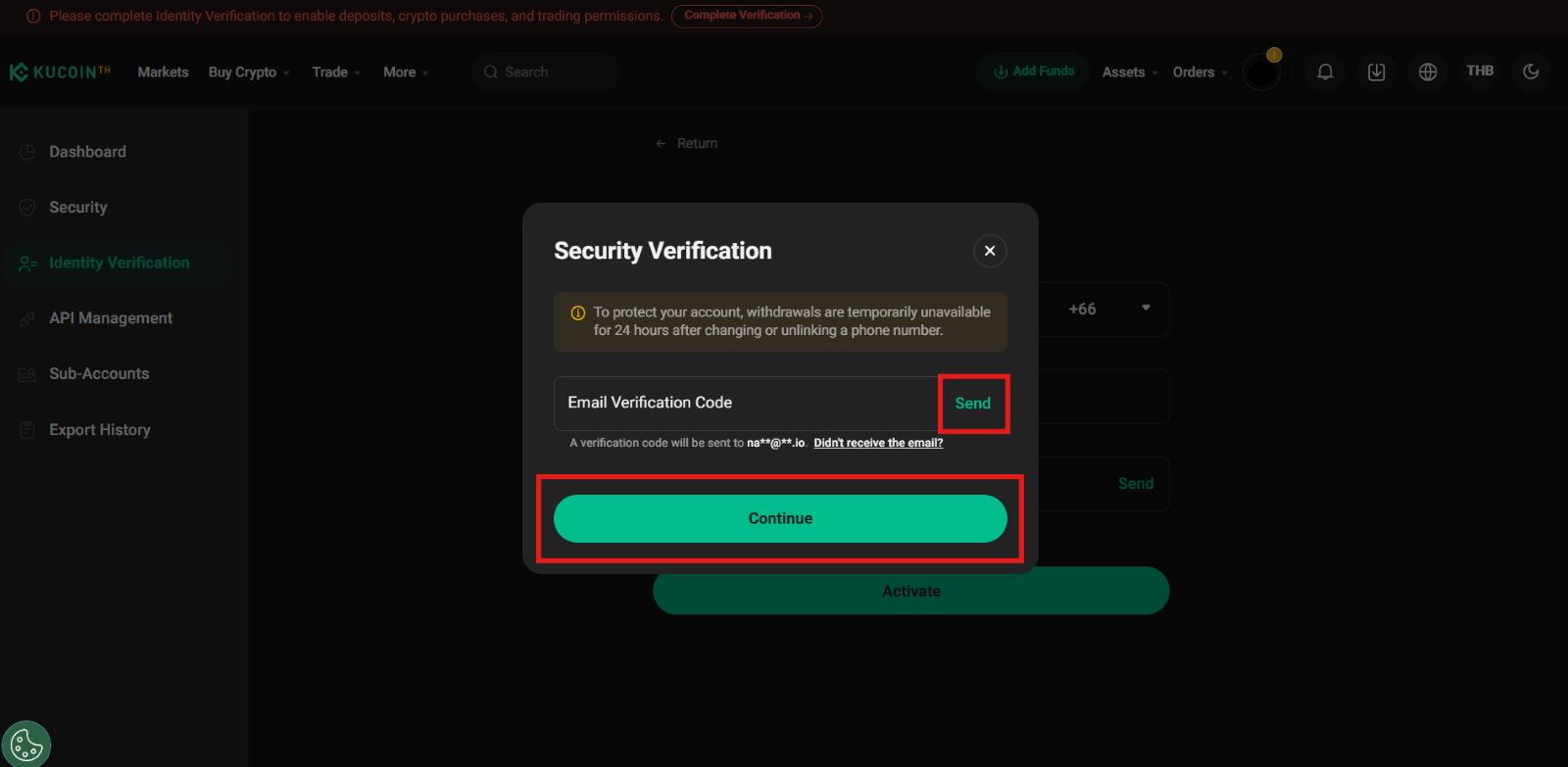
3.The code should then be sent to you via text message. Enter the six-digit code and hit Activate. Verification codes expire in 10 minutes. Enter the verification code in the verification code field and then click “Activate”.
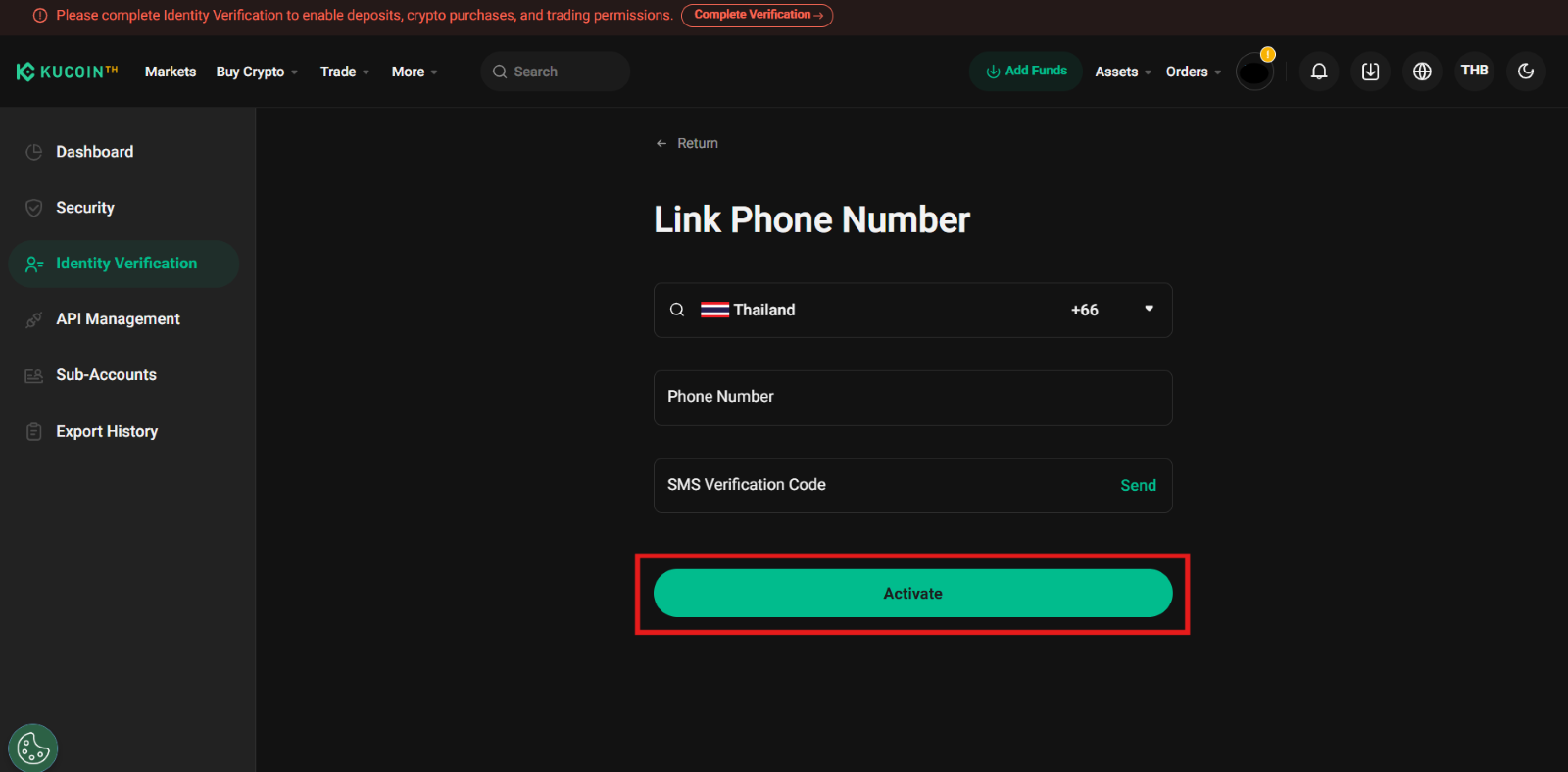
Step 3 : [Login] How to Complete Identity Verification your KuCoin Thailand account
Visit the official KuCoin Thailand application and select Log In from the top left.
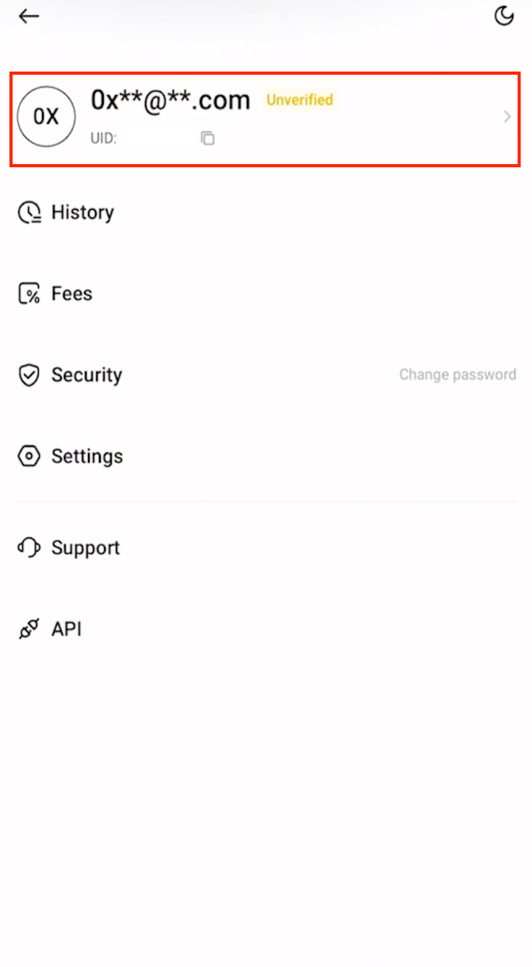
1.Log in to your KuCoin TH account and click [Profile] - [Identity Verification]
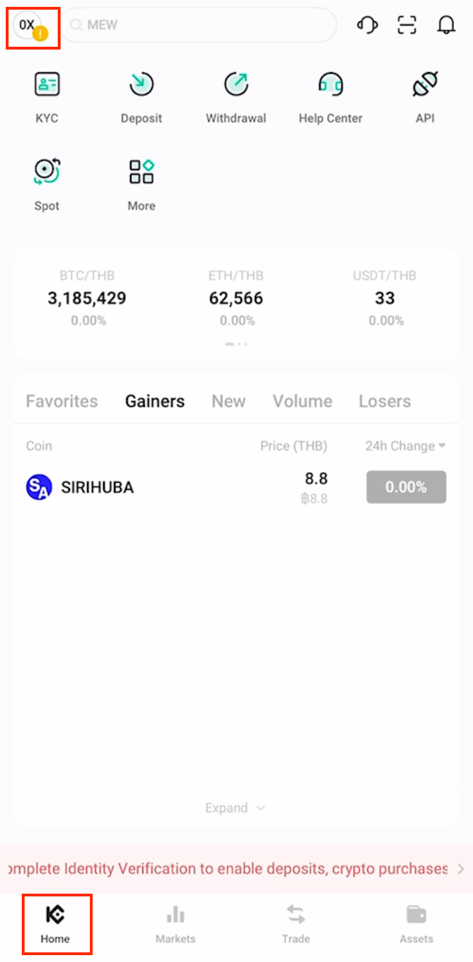
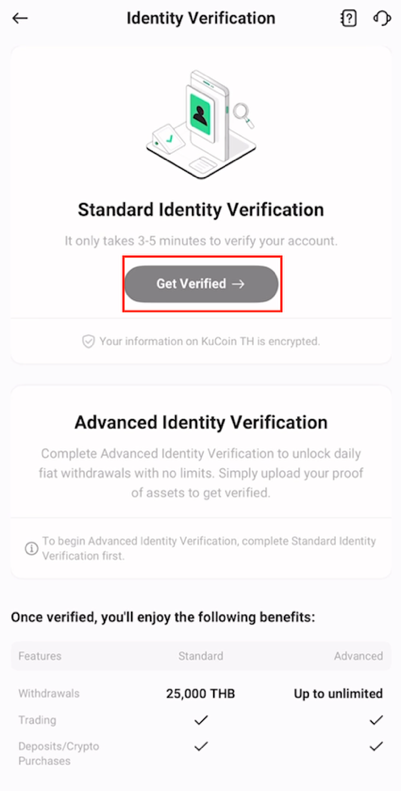
2. Then Click on “Verify”
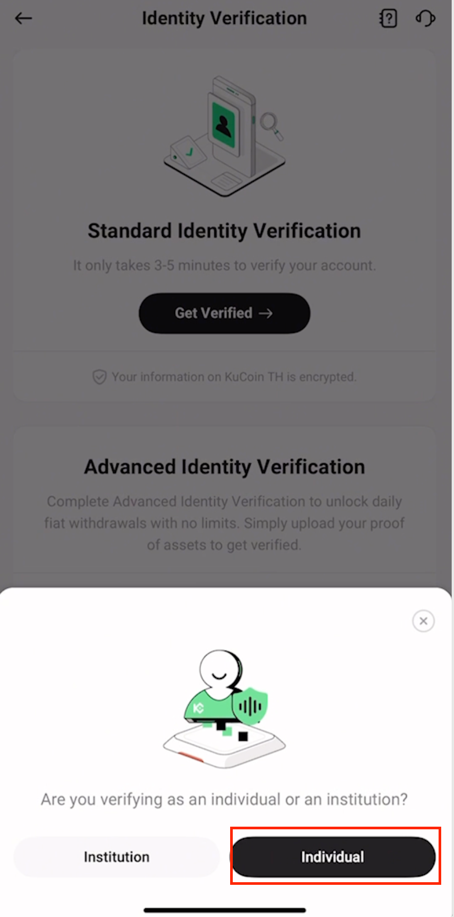
3. The screen will display a notification prompting you to choose whether you are verifying your identity as a corporate client or an individual. Select [Individual].
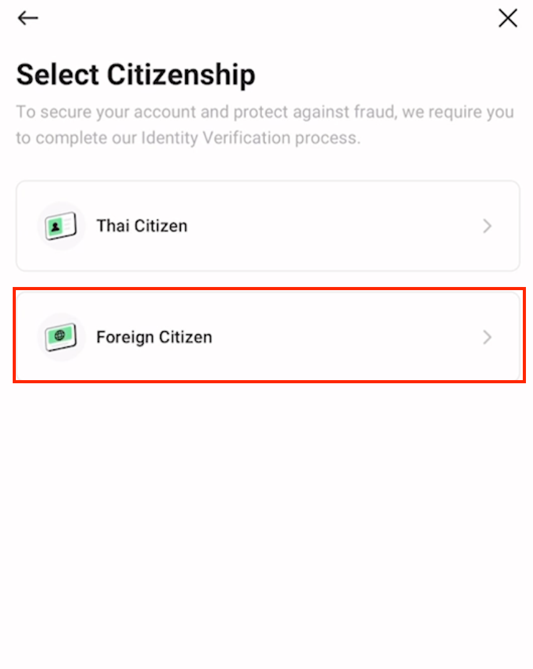
4. Select Citizenship: Thai Citizen or Foreign Citizen. Select [Foreign Citizen]
5. Read the guidelines before taking a photo of your passport and complete the face scan via the Jumio system and click “Next”. Then select your Country/Region
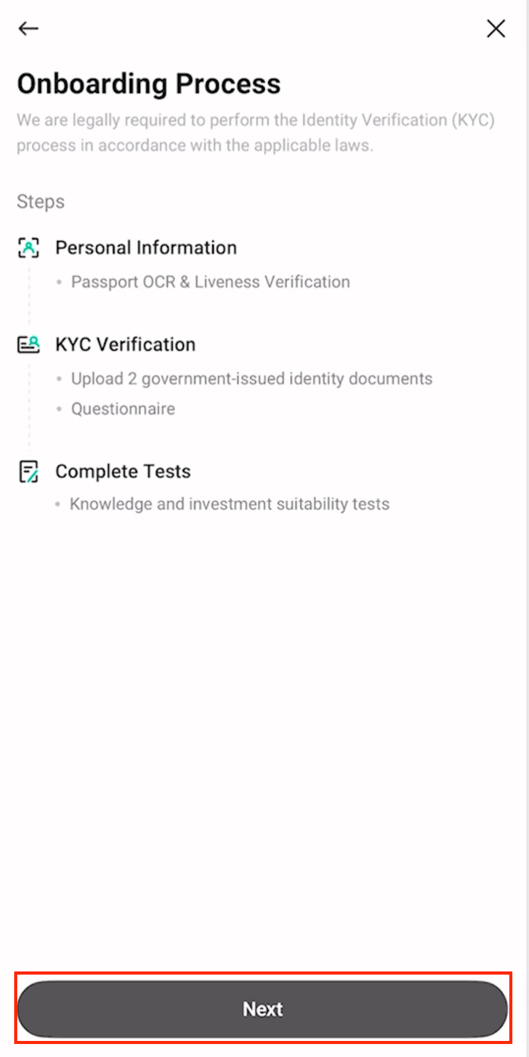

6. KuCoin Thailand support NFC service only for verification of Foreigners
Follow the instructions to photograph your document. Your photos should clearly show the entire passport document. Please ensure that the face photo on your passport is clearly visible. If something is unclear, choose [Retake]. and scan your passport with NFC via the Jumio system.
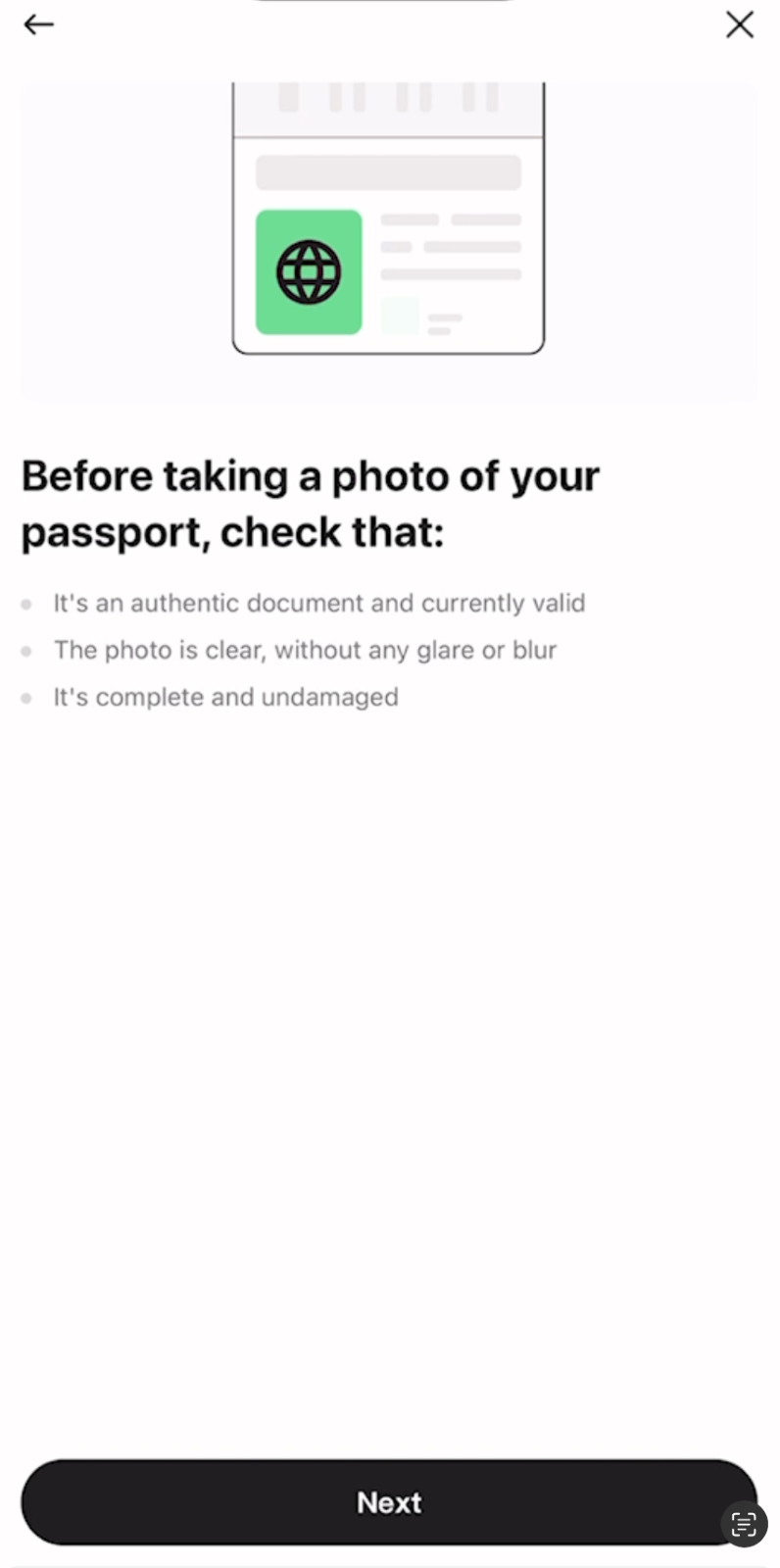
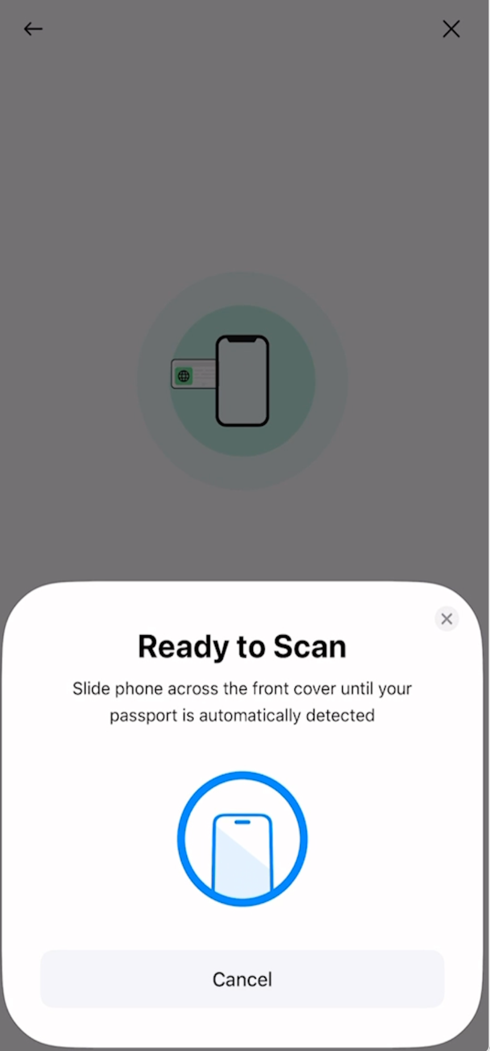
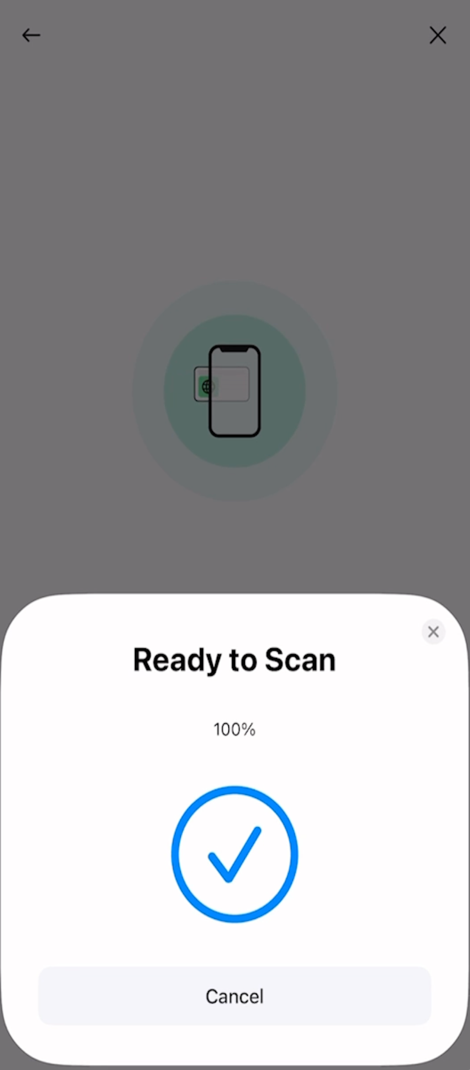
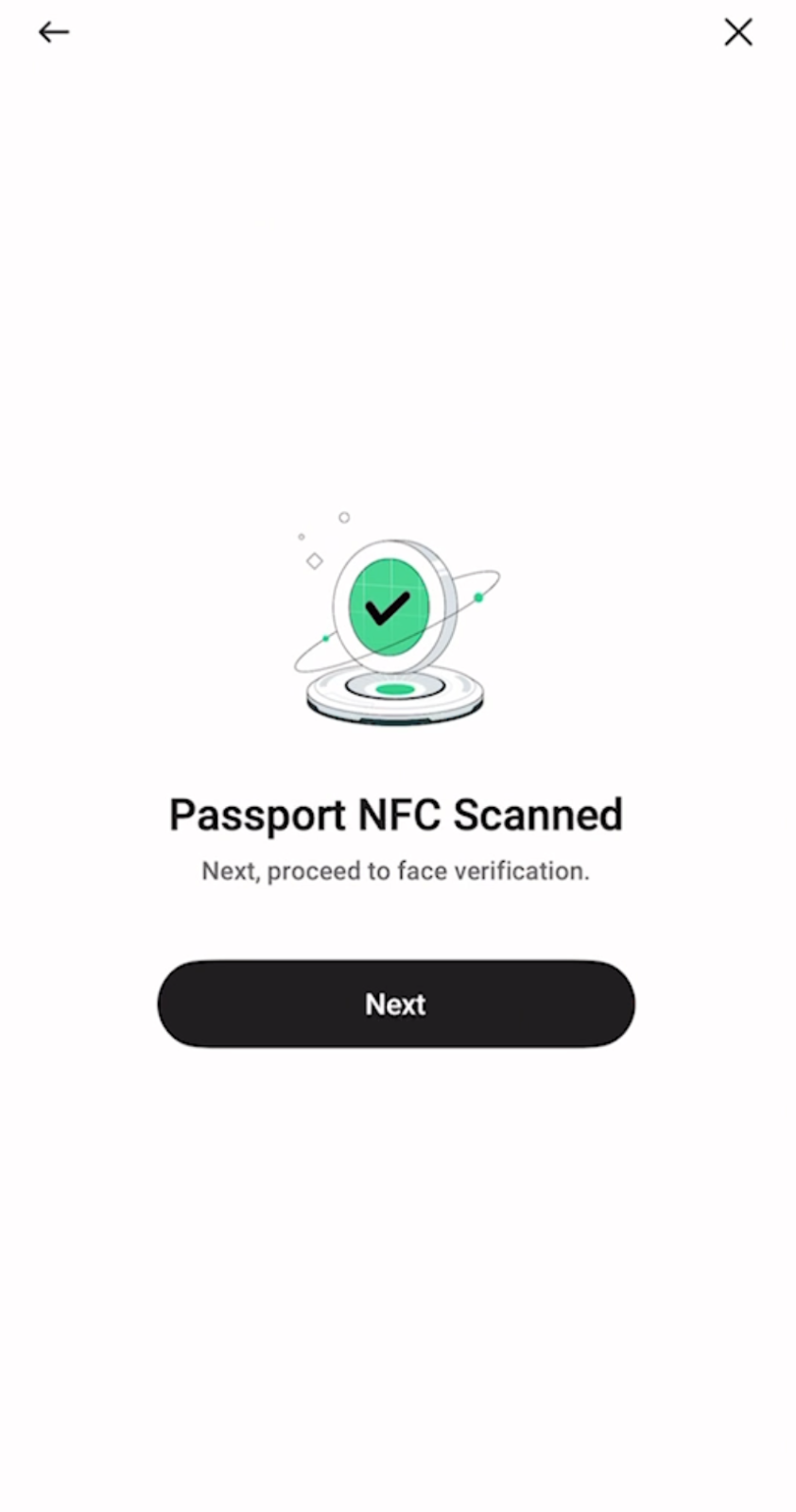

Note: Please enable camera access on your device.
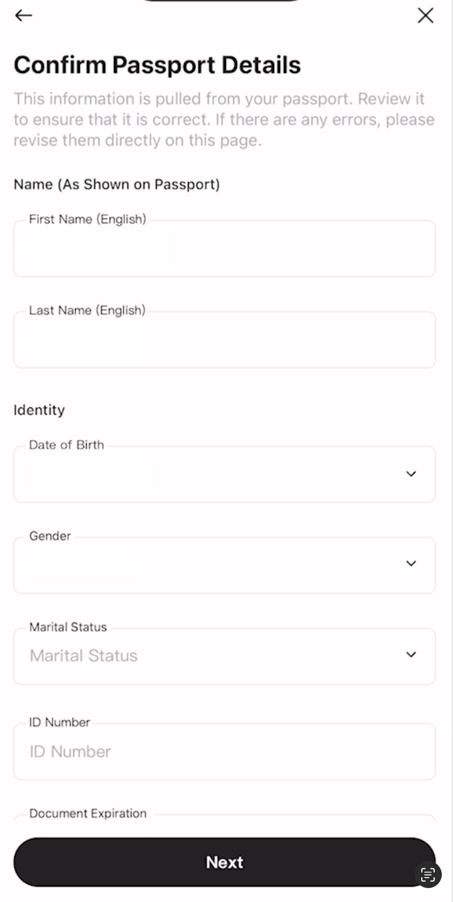
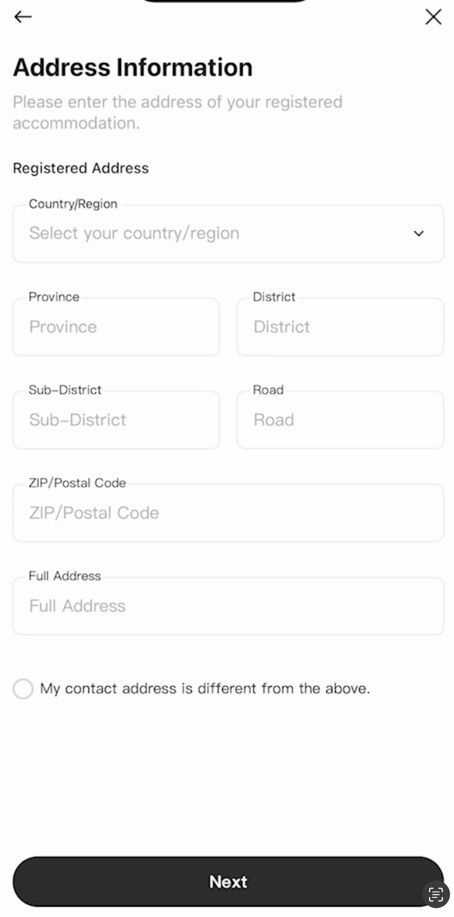
Fill in Passport information Fill in address information
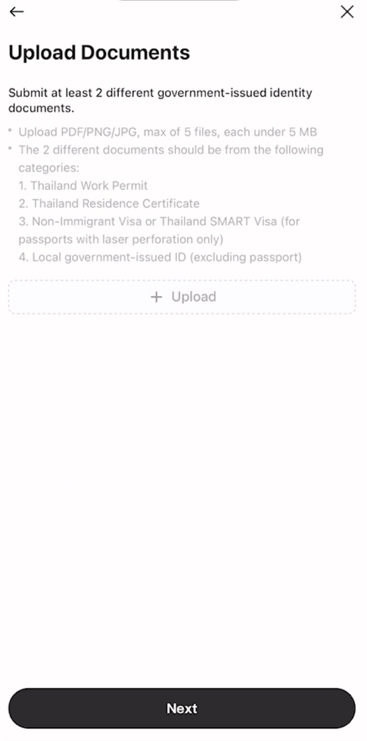

7. Provide additional information i.e. occupation, income range, working address, purpose of using the account to support profile evaluation process.
8. Complete onboarding testing process; Suitability Test and Knowledge Test
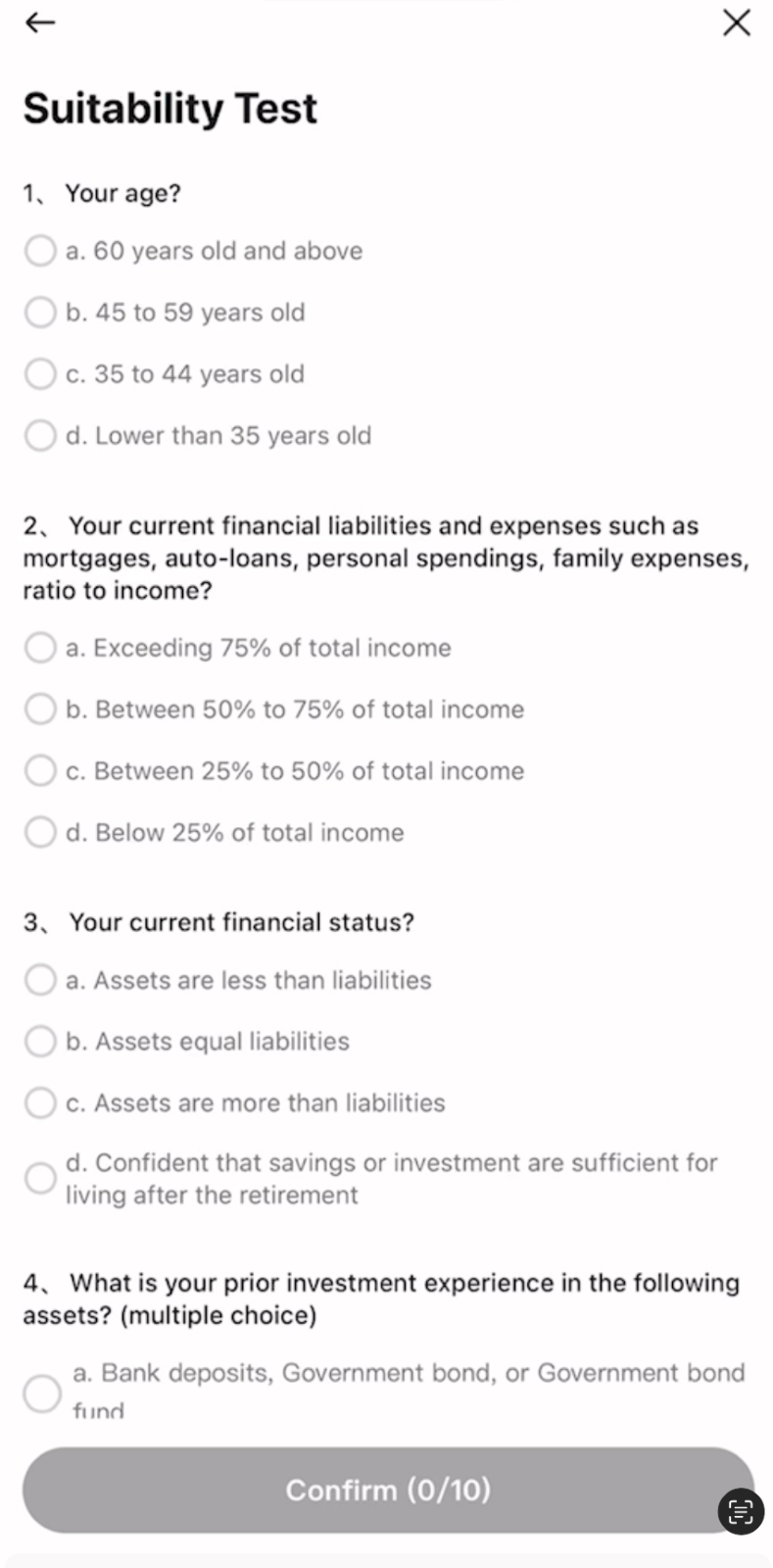
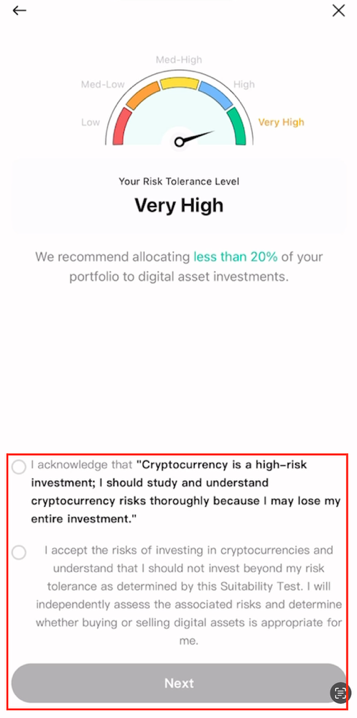
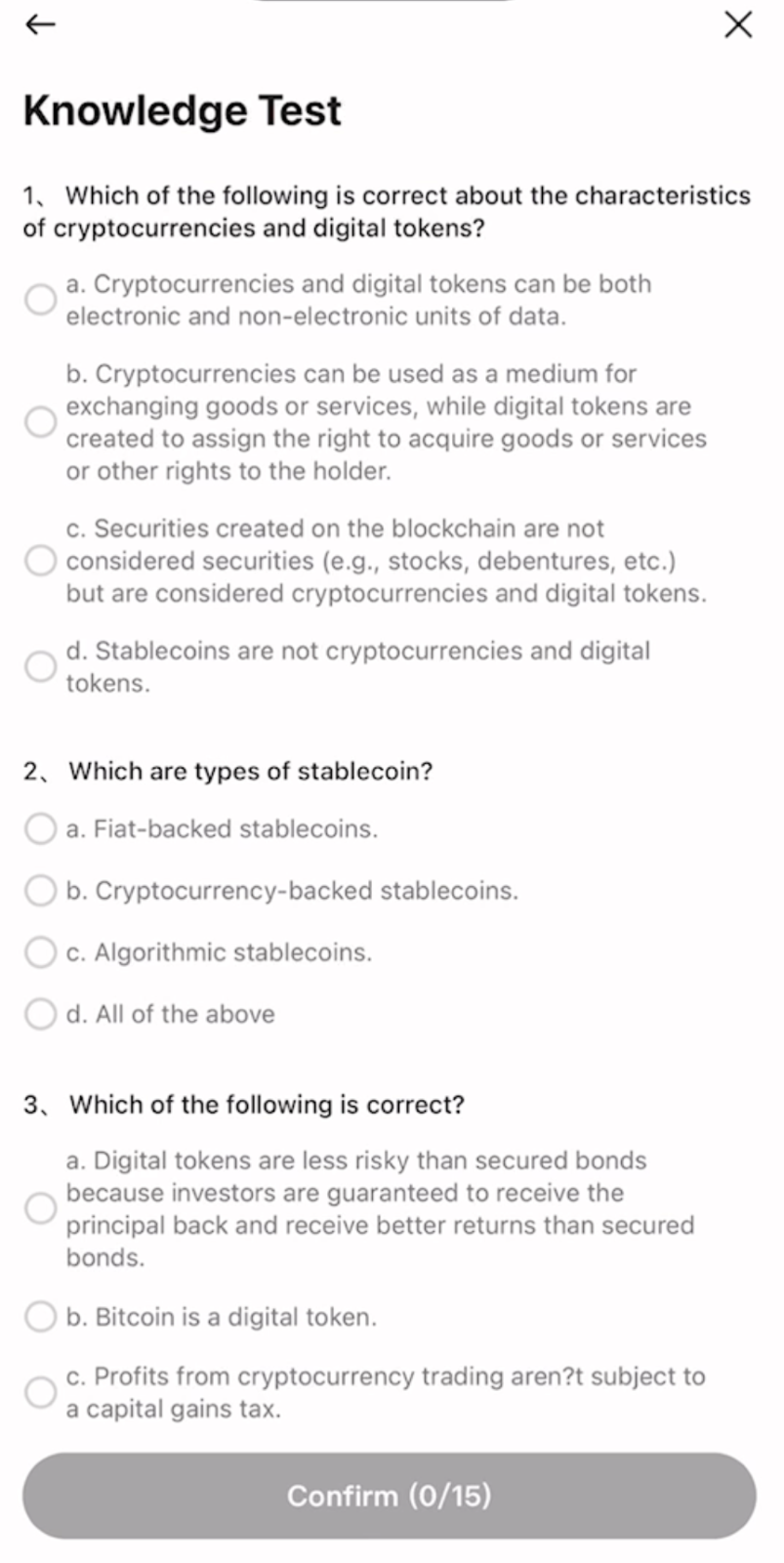

9. The screen will display the submission complete for account opening. Then click “OK” and wait for KYC officer to approve account opening within 3-7 business days.