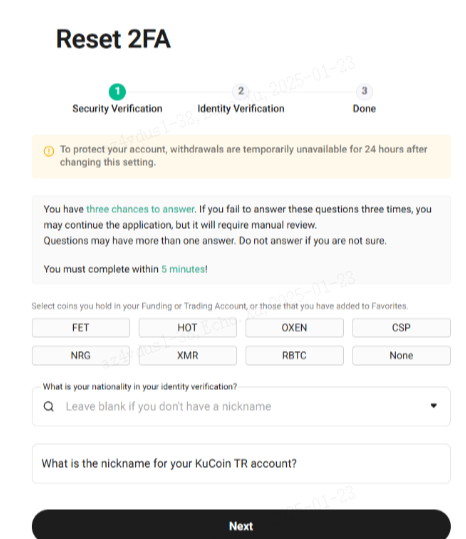
Scenarios for how to Unbind Google via 【2FA Unavailable】
1. Email+Google (Lost)
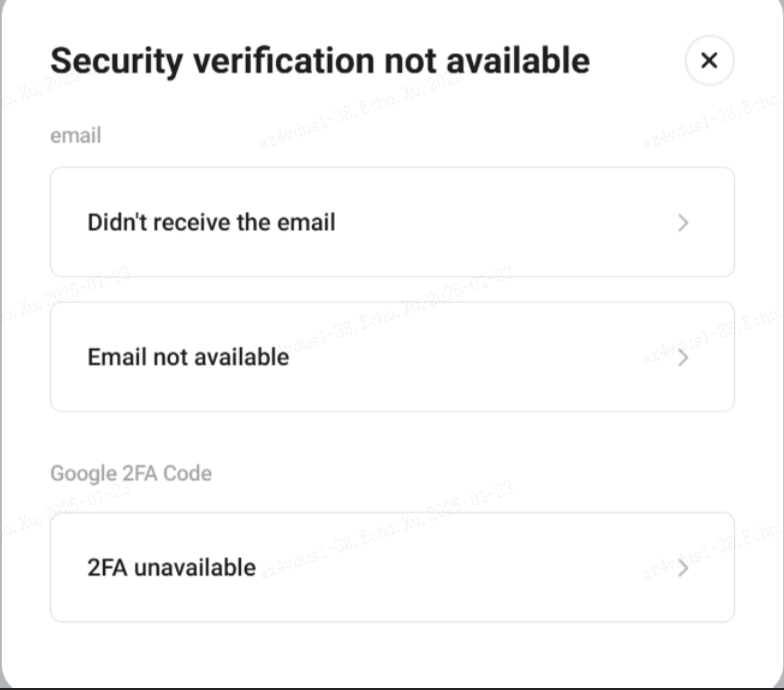
Click “Security verification not available”
-Didn't receive the email
-Email not available
-2FA unavailable
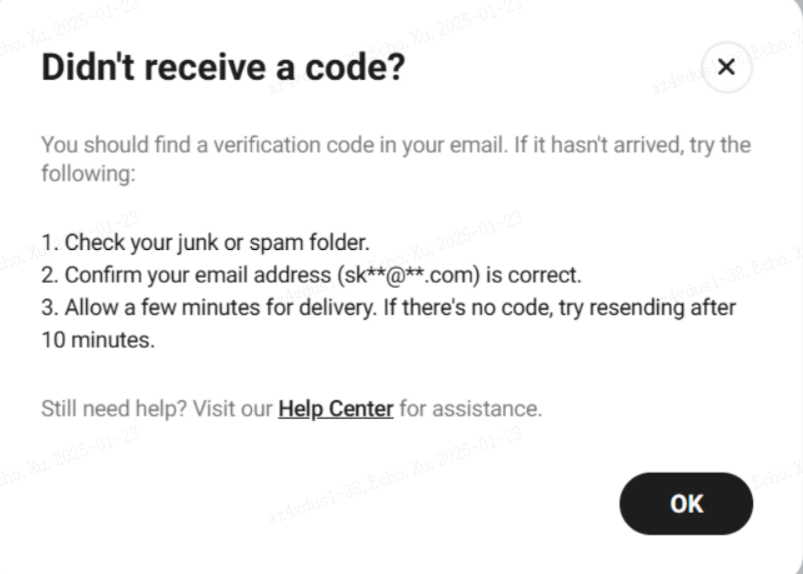
1.1 If click “Didn't receive the email”, the user will be guided BTS about “Didn't receive a code?”
1.2 If click "Email not available", the user will be guided to “Submit a ticket” page
1.3 If choose “2FA unavailable” -- Semi self-service
①2FA unavailable

②Security Verification: Email code

③Identity Verification: Front ID+ Back ID+ Handheld Photo (Face Verification)

④Submit: Waiting for Review
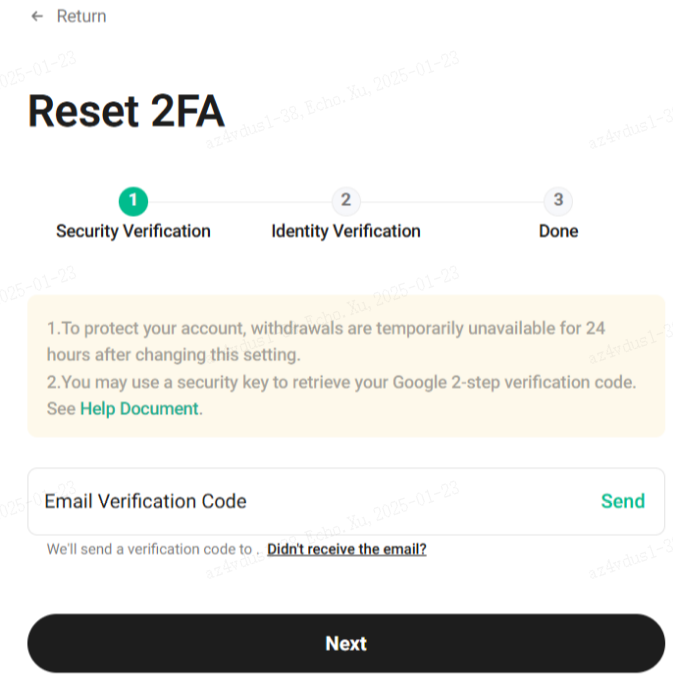
2.Email+Trading Password+Google (Lost)
Click “Security verification not available”
-Didn't receive the email
-Email not available
-2FA unavailable
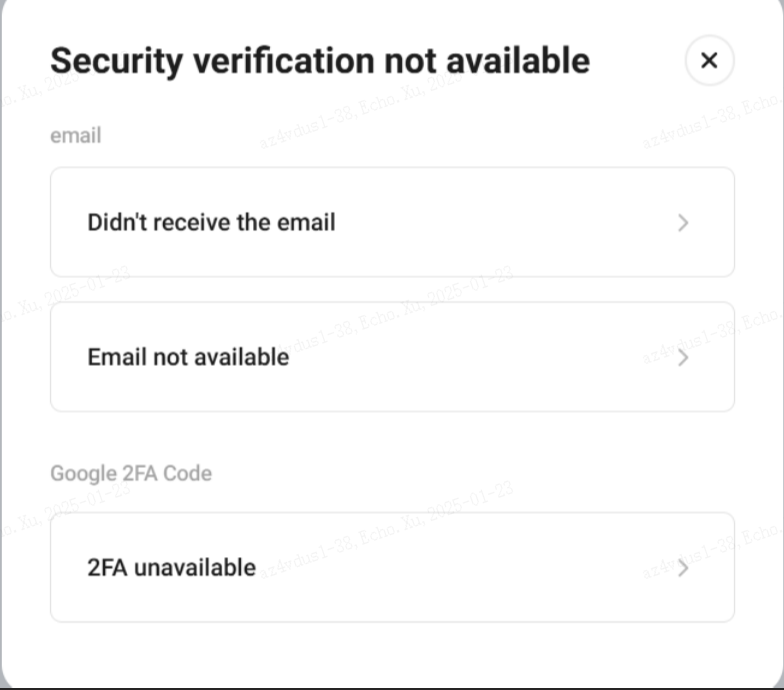
2.1 If click “Didn't receive the email”, the user will be guided BTS about “Didn't receive a code?”
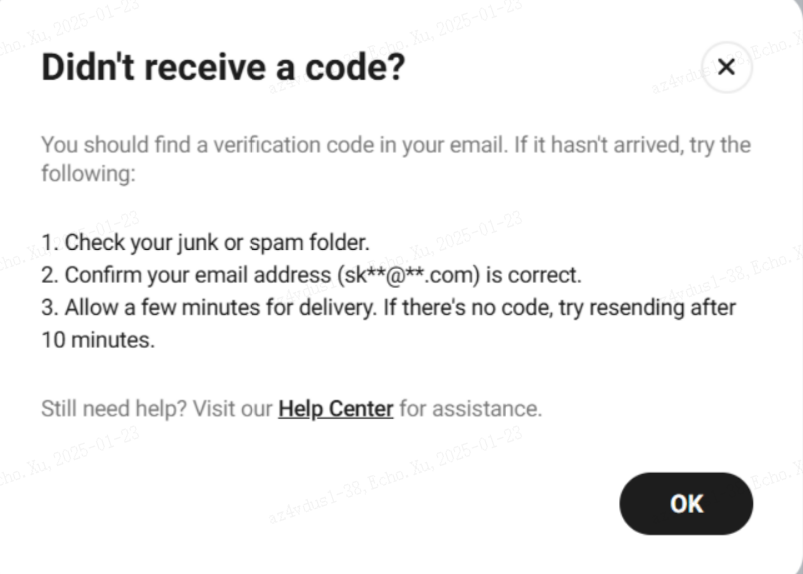
2.2 If click "Email not available", the user will be guided to “Submit a ticket” page
2.3 If choose “2FA unavailable” --Semi self-service
①2FA unavailable

②Security Verification: Email code+ TP

③Identity Verification: Front ID+ Back ID+ Handheld Photo (Face Verification)

④Submit: Waiting for Review
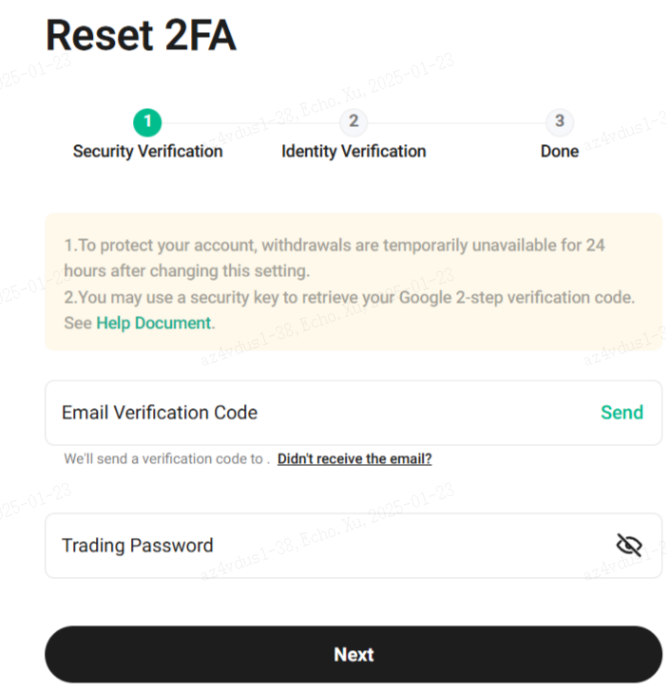
3.Email+Phone+Google (Lost)
Click “Security verification not available”
-Reset Google 2FA using mobile phone
-Reset Google 2FA using email
Click 2FA Unavailable
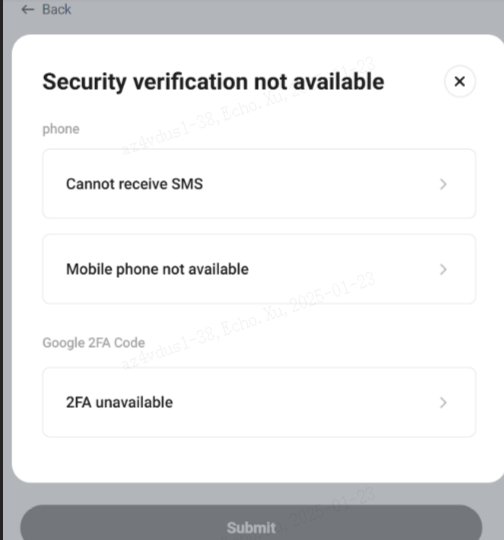
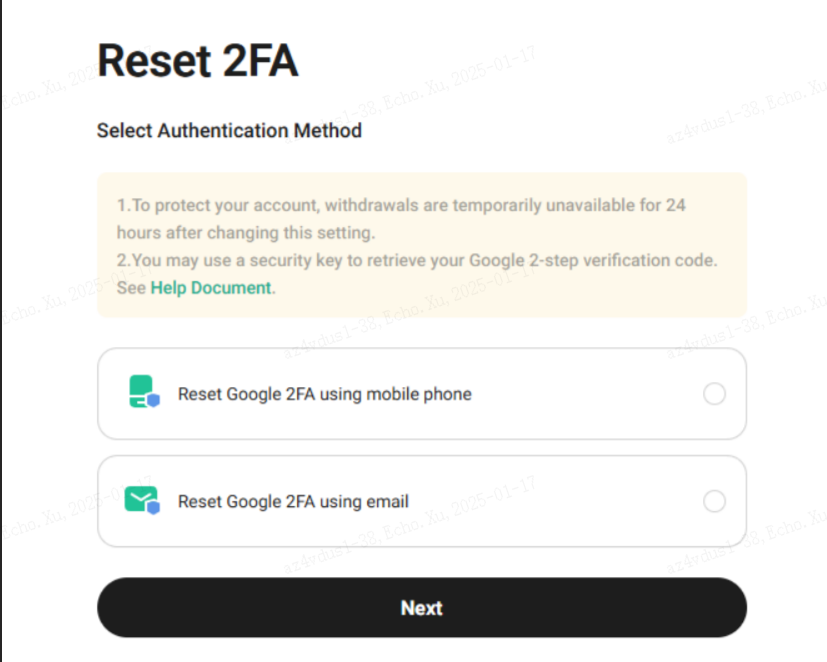
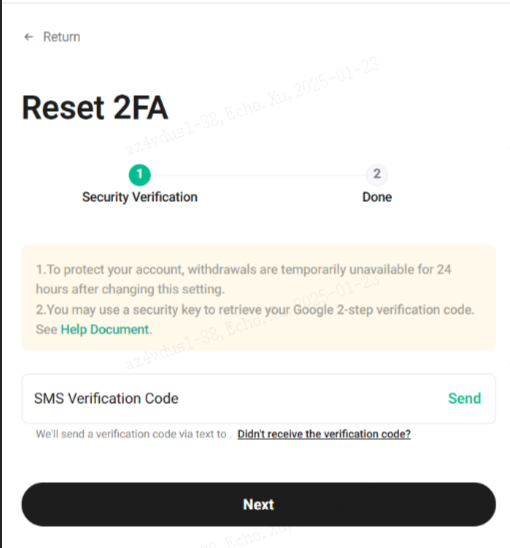
3.1 If choose “Reset Google 2FA using mobile phone” -- Self service
①Security Verification: SMS Code

②Submit: Reset Successfully, no need to wait for Review
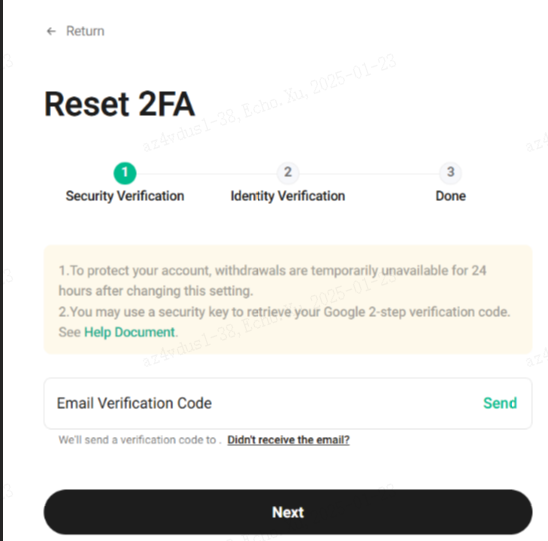
3.2 If choose “Reset Google 2FA using email” --Semi self service
①Security Verification: Email Code

②Identity Verification: Front ID+ Back ID+ Handheld Photo (Face Verification)

③Submit: Waiting for Review
4. Email+Phone+TP+Google (Lost)
Click “Security verification not available
- Reset Google 2FA using trading password and mobile
- Reset Google 2FA using trading password and email
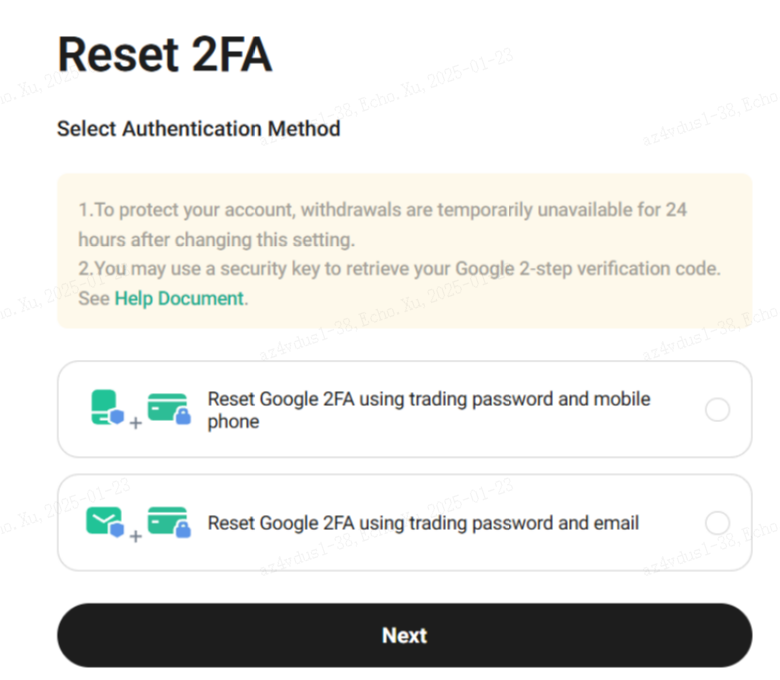
4.1 If choose “Reset Google 2FA using trading password and mobile”--Self service
①Security Verification: SMS Code+ Trading Password

②Submit: Reset Successfully, no need to wait for Review
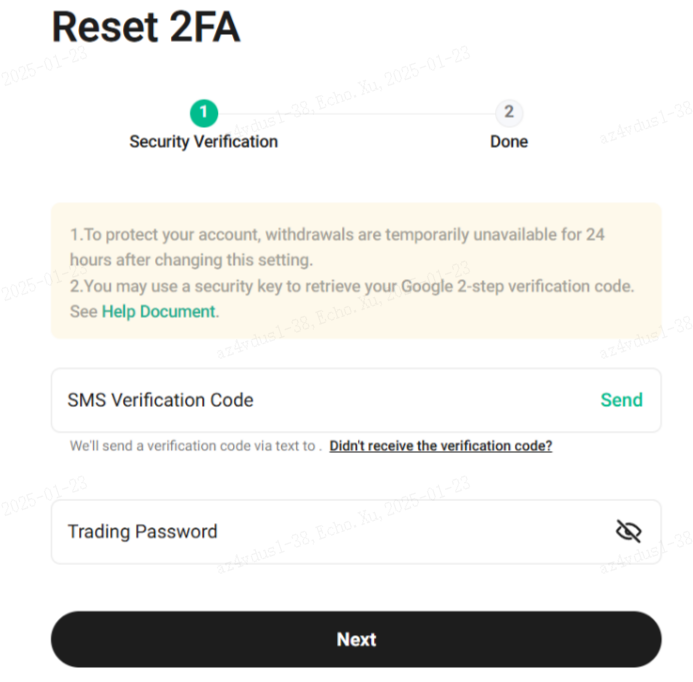
4.2 If choose “Reset Google 2FA using trading password and email” ----Semi self service
①Security Verification: Email Code+Trading Password

②Identity Verification: Front ID+ Back ID+ Handheld Photo (Face Verification)

③Submit: Waiting for Review
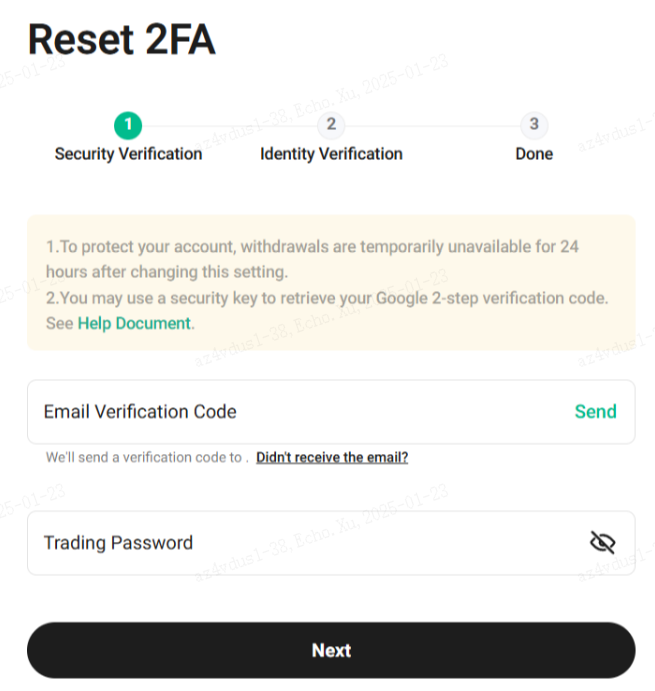
5.Phone +Google (Lost)
Click “Security verification not available
-Reset Google 2FA using mobile phone
-Mobile phone unavailable
Click “2FA unavailable"
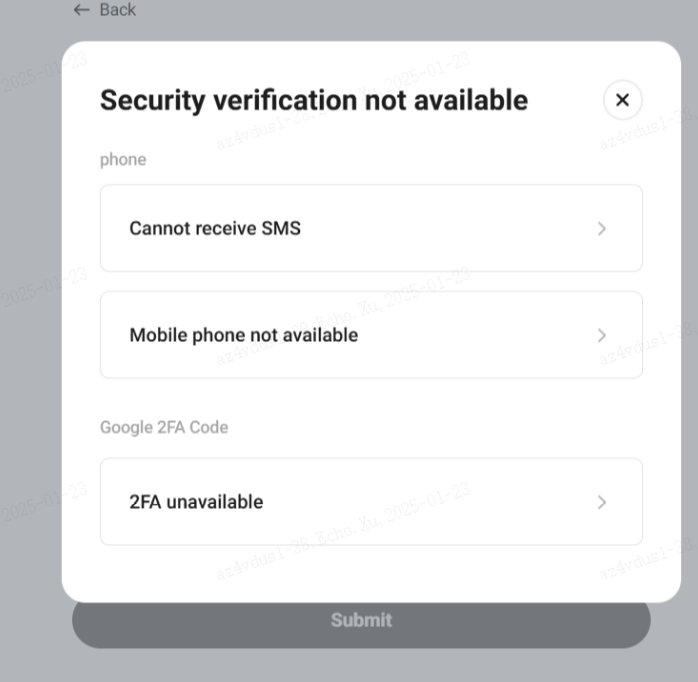
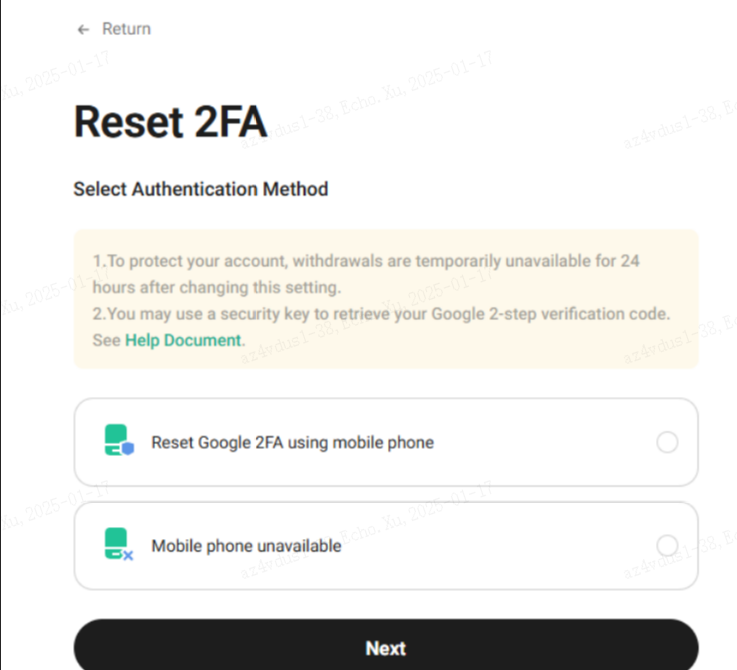
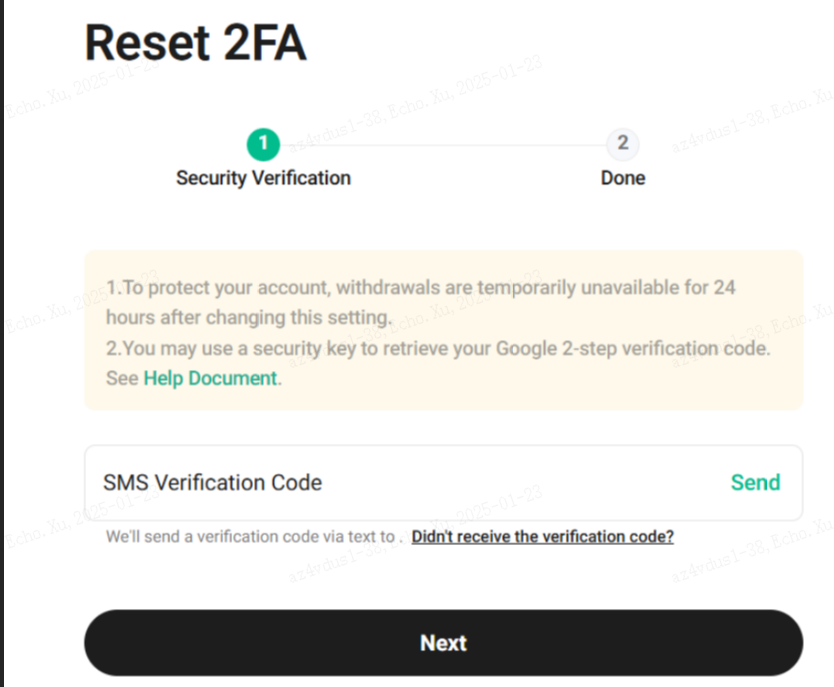
5.1 If choose “Reset Google 2FA using mobile phone”: --Self service
①Security Verification: SMS Code

②Submit: Reset Successfully, no need to wait for Review
.
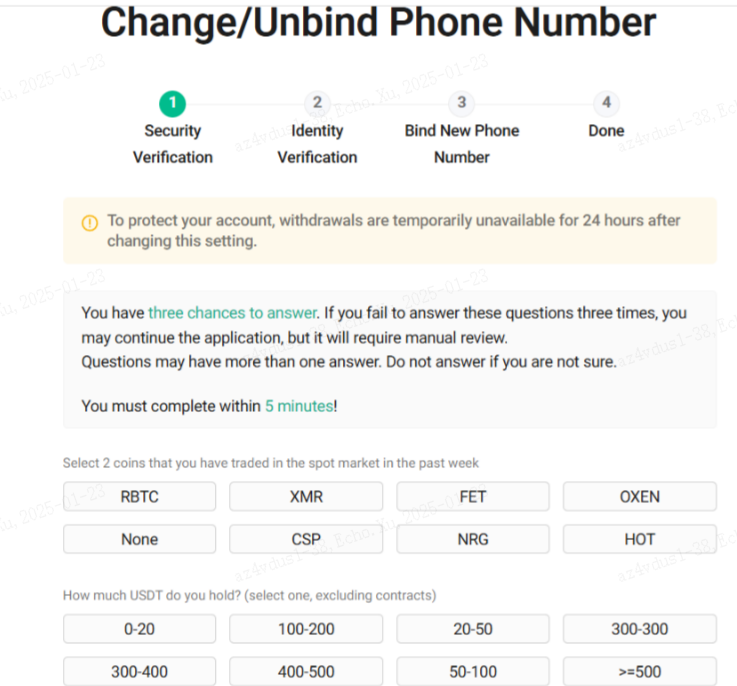
5.2 If choose “Mobile phone not available” -- Semi self service
①Security Verification: Security Questions

②Identity Verification: Front ID+ Back ID+ Handheld Photo (Face Verification)

③Submit: Waiting for Review
6. Phone+TP+Google (Lost)
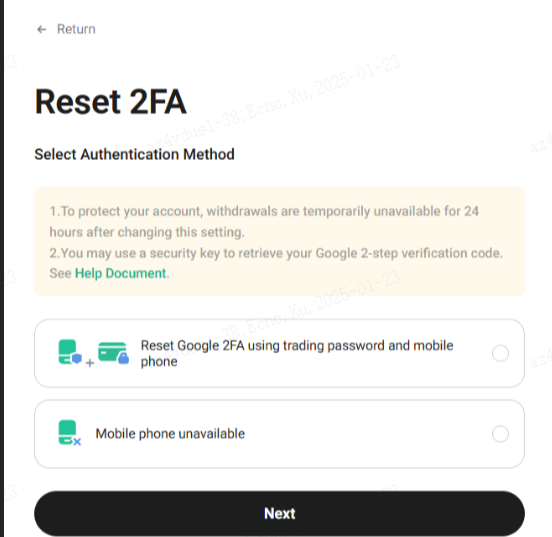
Click “Security verification not available
- Reset Google 2FA using mobile phone and trading password
- Mobile phone unavailable
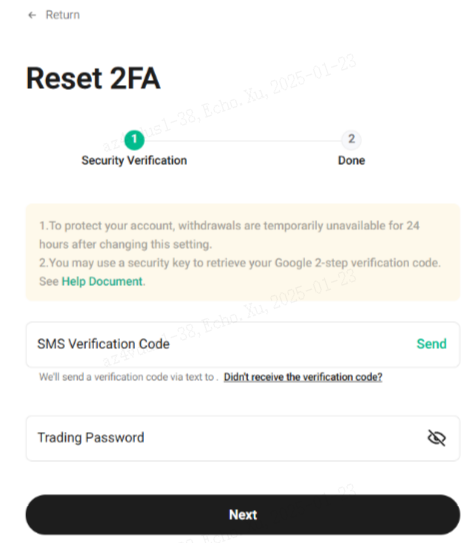
6.1If choose “Reset Google 2FA using mobile phone and trading password”: --Self service
①Security Verification: SMS Code+TP

②Submit: Reset Successfully, no need to wait for Review
6.2 If choose “Mobile phone not available”: -- Semi self service
①Security Verification: Security Questions

②Identity Verification: Front ID+ Back ID+ Handheld Photo (Face Verification)

③Submit: Waiting for Review