
Phone Number
To better protect your account, bind your phone number as a verification method. Having multiple security measures lowers the chances of a security breach. Examples of such setups include: Google 2FA + bound email + trading password or bound phone + trading password.
Content (Click to navigate)
How to Change Your Phone Number
How to Unbind Your Phone Number
1. How to Bind a Phone Number
1.1 Go to Security Settings, look for the phone option, and hit the "Link" button.
1.2 You’ll be asked to enter a verification code, either from Google 2FA code or email.
1.3 On the next page, enter the phone number you wish to bind and hit Send. The code should then be sent to you via SMS verification code. Enter the six-digit code and hit Activate.
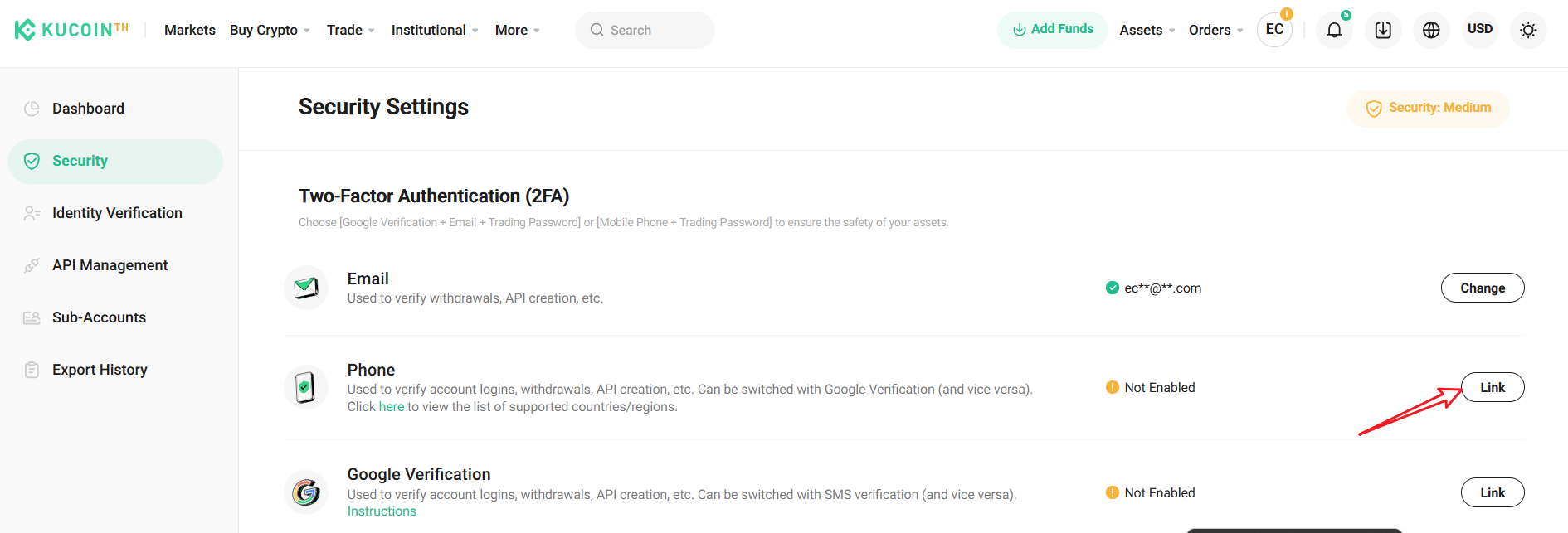
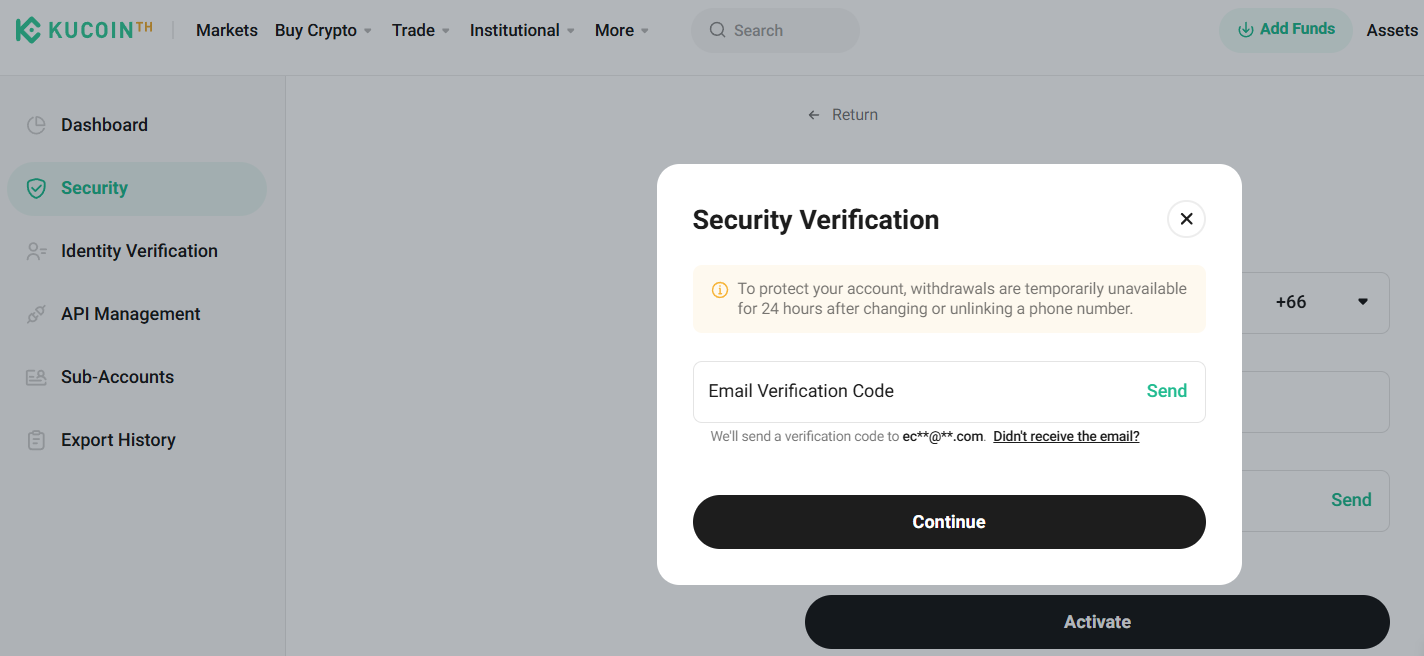
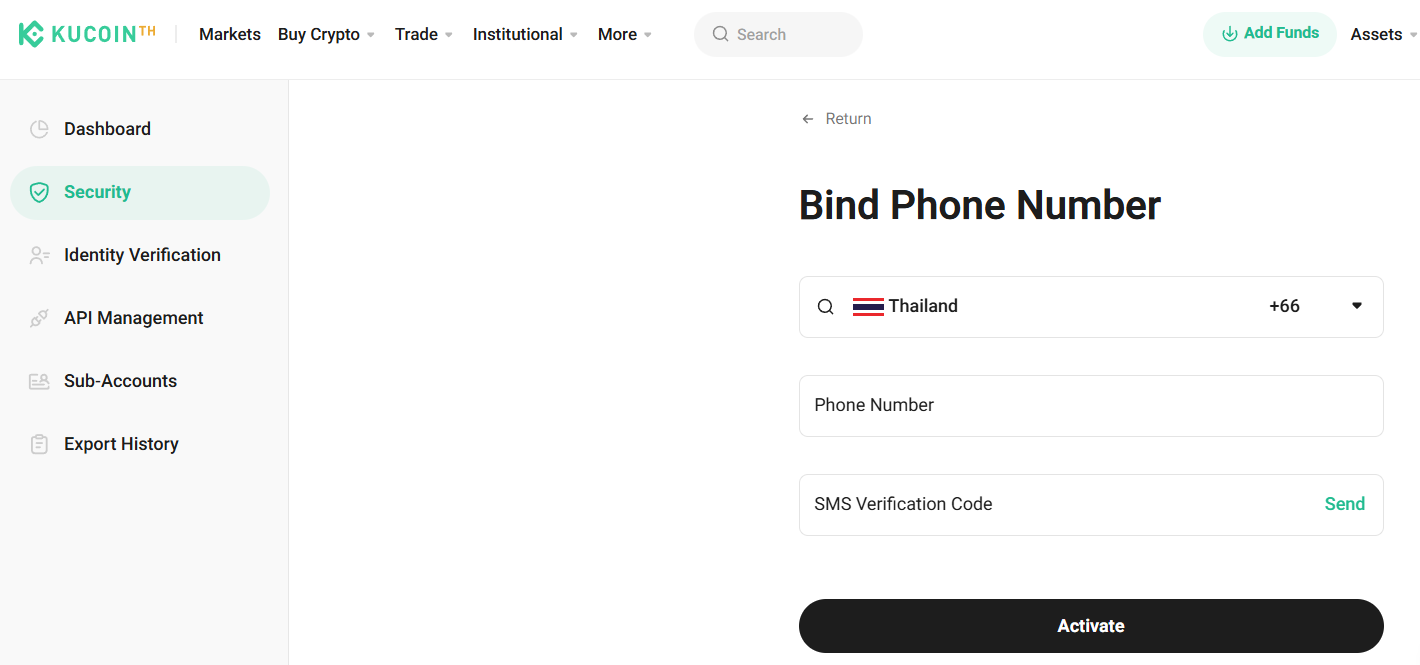
Note:
• If you’re trying to use an email verification code, remember to click the Send button to request one.
• Withdrawals service under your account will be disabled for 24 hours after binding your phone number to protect your assets.
2. How to Change Your Phone Number
You can log in and still have access to your old phone number, or you have access to your Google 2FA.
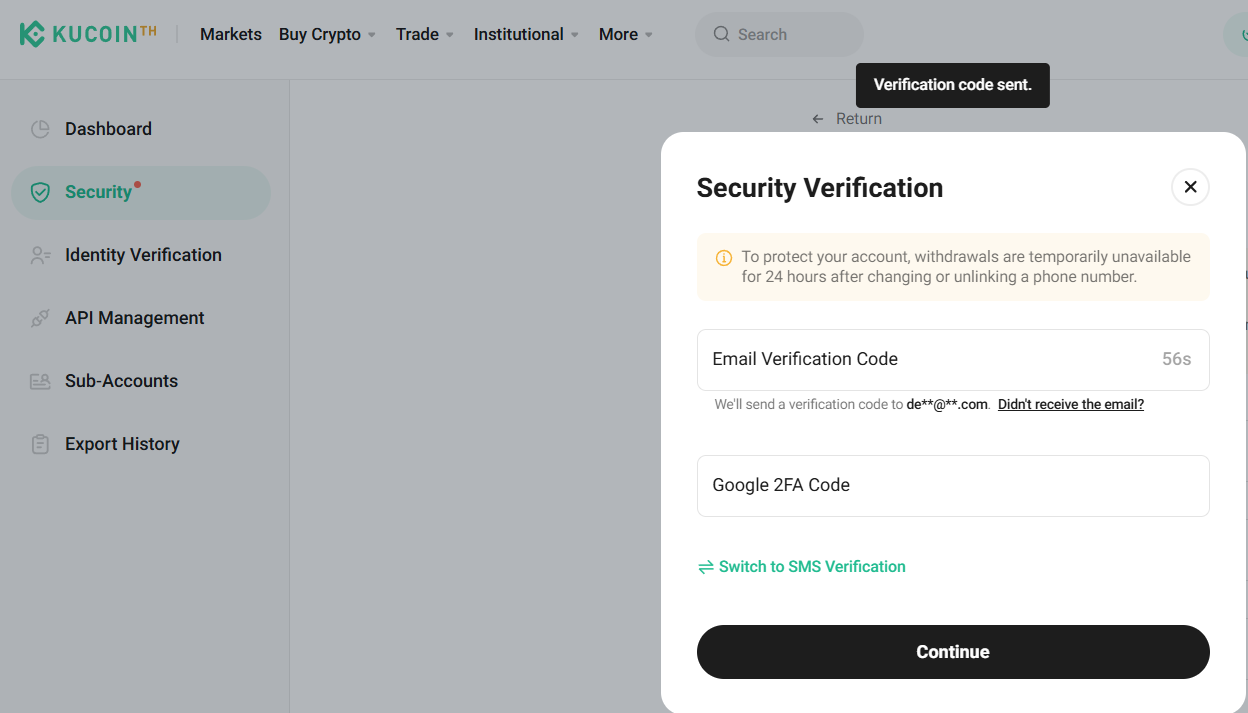
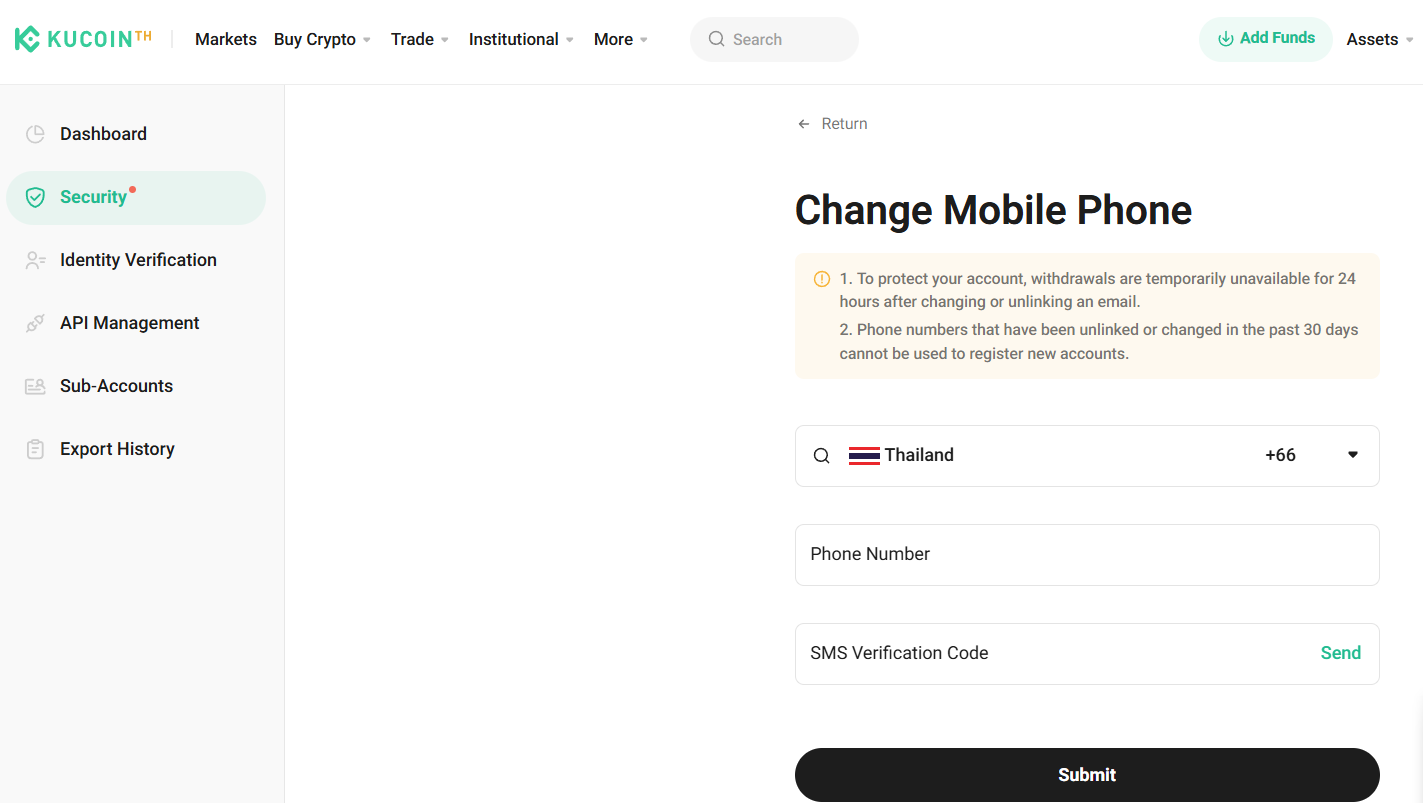
2.1 Go to Security Settings, look for the option for phone, and select Change.
2.2 You’ll be asked to enter a verification code sent to you either via sms verification code, or Google 2FA and email verification code.
2.3 On the next page, enter the new phone number you wish bind, then hit Send button. The code will be sent to your phone via text message. Enter the six-digit verification code and hit Submit.
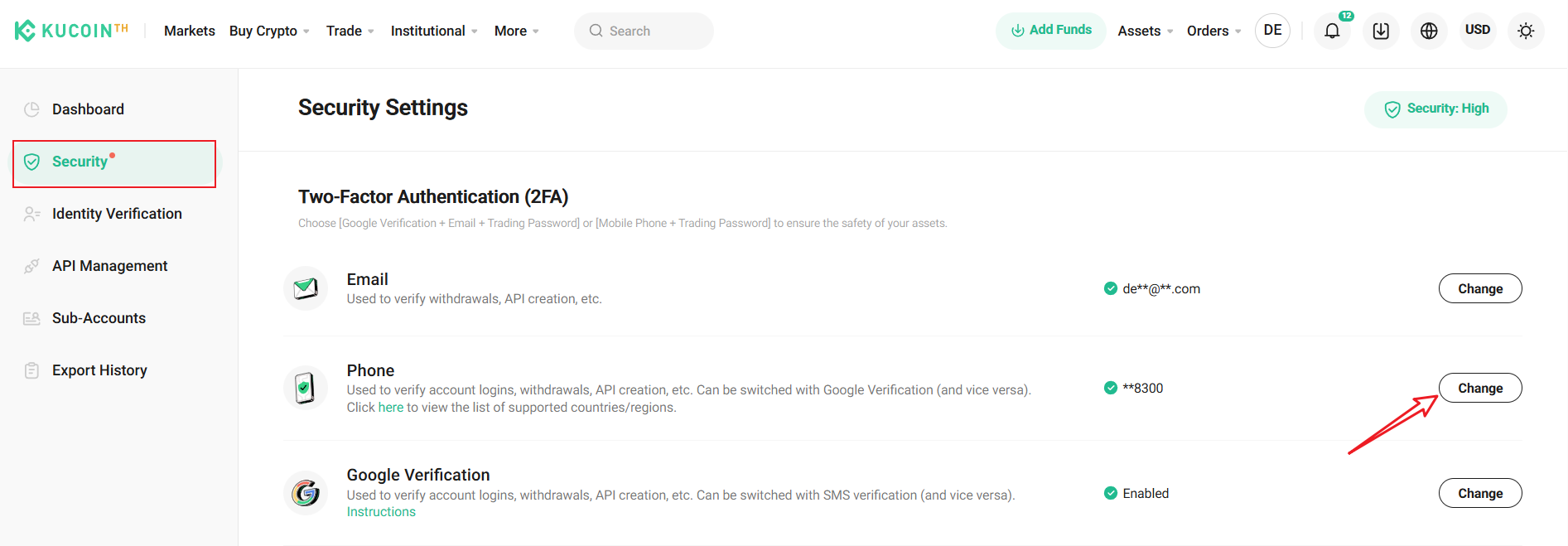
Note:
• Withdrawals service under your account will be disabled for 24 hours after updating your phone number to protect your assets.
3. How to Unlink Your Phone Number
You no longer have access to your previous phone number but do not have a new phone number to replace it with.
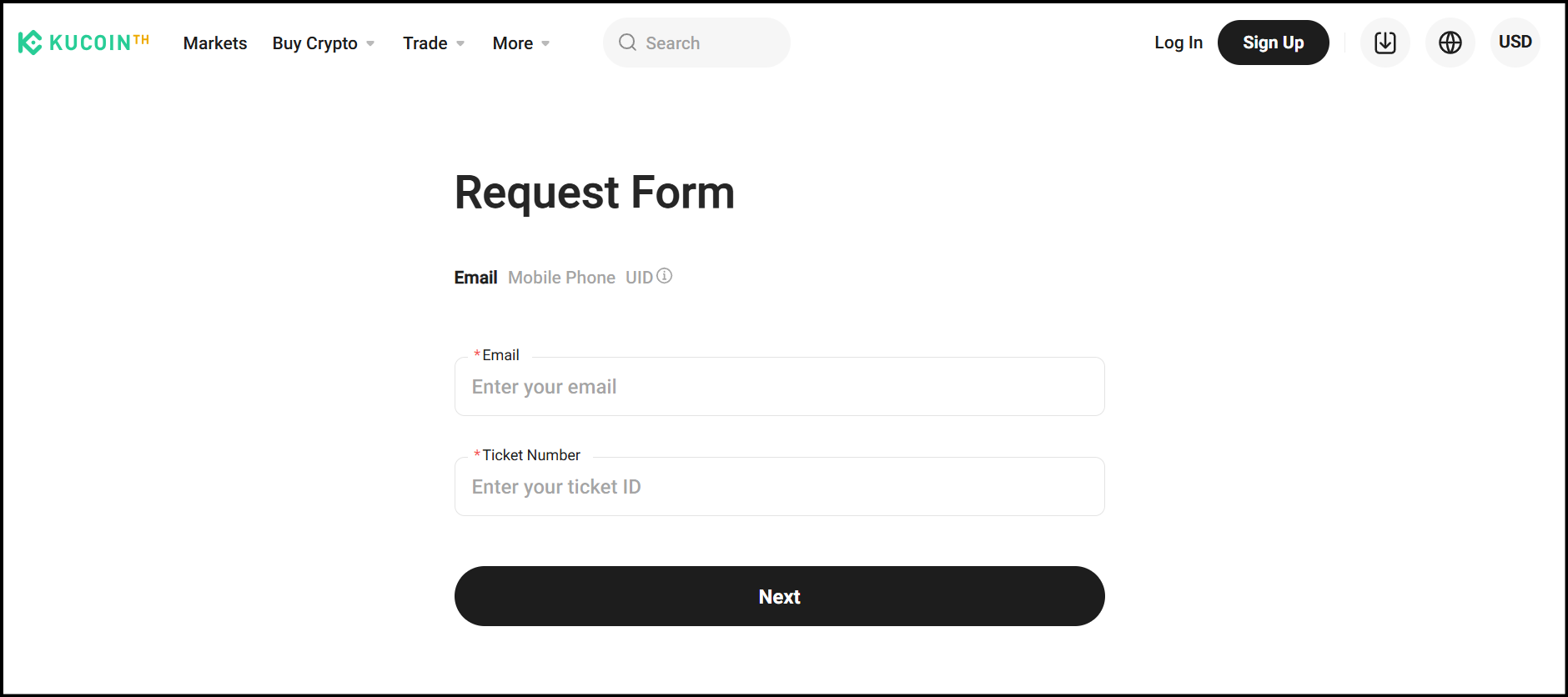
3.1 Go to https://www.kucoin.th/en/forms/verify
3.2 Please enter your email and Ticket Number. If you do not have a Ticket Number, kindly enter the Date instead (Ex. 220525)
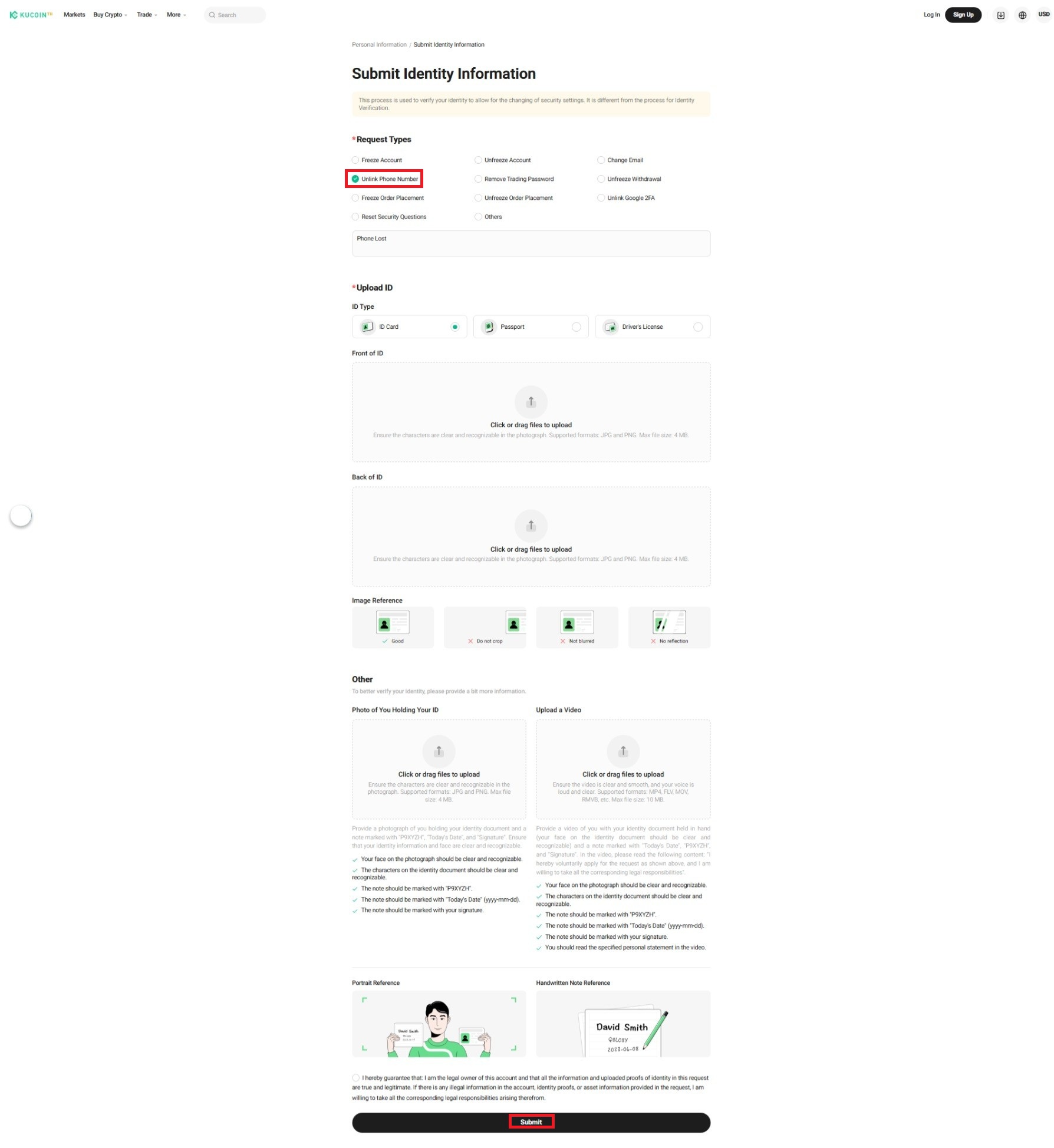
3.3 Select Request Type, check the option: Unlink Phone Number
3.4 Select ID Type
3.5 Upload Front and Back of ID Card
3.6 Photo of You Holding Your ID. The photo must include a handwritten note with:
• KuCoin
• Today’s date (DD/MM/YYYY)
• Your signature
3.7 Confirm and Submit
3.8 Contact KuCoin TH Happiness Team for verification. Processing takes 1-3 business days.
Note:
• When completing Identity Verification, upload the required photos while following the instructions closely, otherwise your request to unbind your phone may fail.
• Once you’ve appealed, Contact KuCoin TH Happiness Team For verification. Processing takes 1-3 business days.