How to Download Your Trading Report from KuCoin TH
1. Navigate to the Order Section
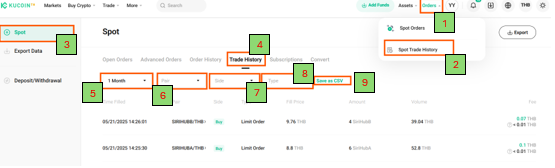
Go to KuCoin Order Export, then click on the “Order” menu.
2. Select Spot Trade History
From the available options, choose “Spot Trade History.”
3. Select the “Spot” Button
Click the “Spot” button on the left side of the page to view current and recent trade orders and spot trade history.
4. Select “Trade History” in the Category
Choose “Trade History” to display your trading activity based on selected conditions.
5. Choose the “Period”
Click the “Period” button to select the time range for the report you want to generate.
6. Select “Pair” of Currency for Trading (if necessary)
For example, BTC/THB or ETH/THB; you may also select all trading pairs.
7. Select the “Trade side”
Choose Buy, Sell, or Both to filter by trade direction.
8. Select Trading “Type”
Pick from options such as Limit Order or Market Order or choose “All” to include every type.
9. Click the “Save as Csv” Button
Click on “Save as Csv” to prepare the file for download.
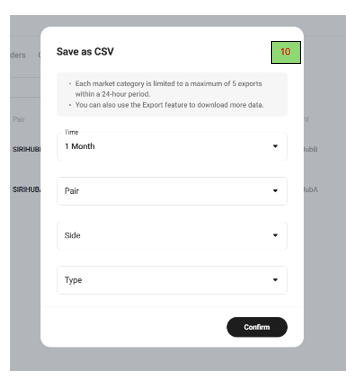
10. Review Conditions in the Pop-up
A pop-up will appear displaying the necessary conditions for your selected data.
11. Initiate Export Process
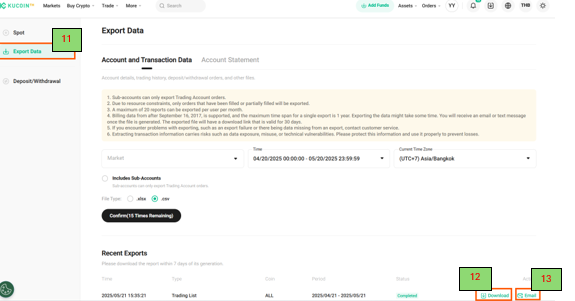
Click on the “Export Data” button to begin generating your statement.
12. Download PDF Option
If you select “Download,” a pop-up will show the PDF file; click “Download” to download it to your device.
13. Send to Email Option
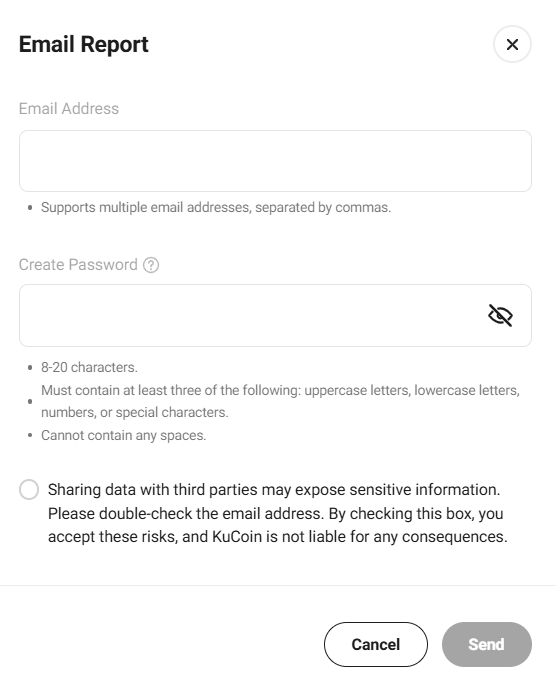
If you choose “Send to Email,” a pop-up window will appear where you must enter the recipient’s email address and generate file password to authorize the request. After that, click "Send"
You can send the file to multiple email addresses by separating each one with a comma (,).